AI Reference-Guided Object Placement

Gallery
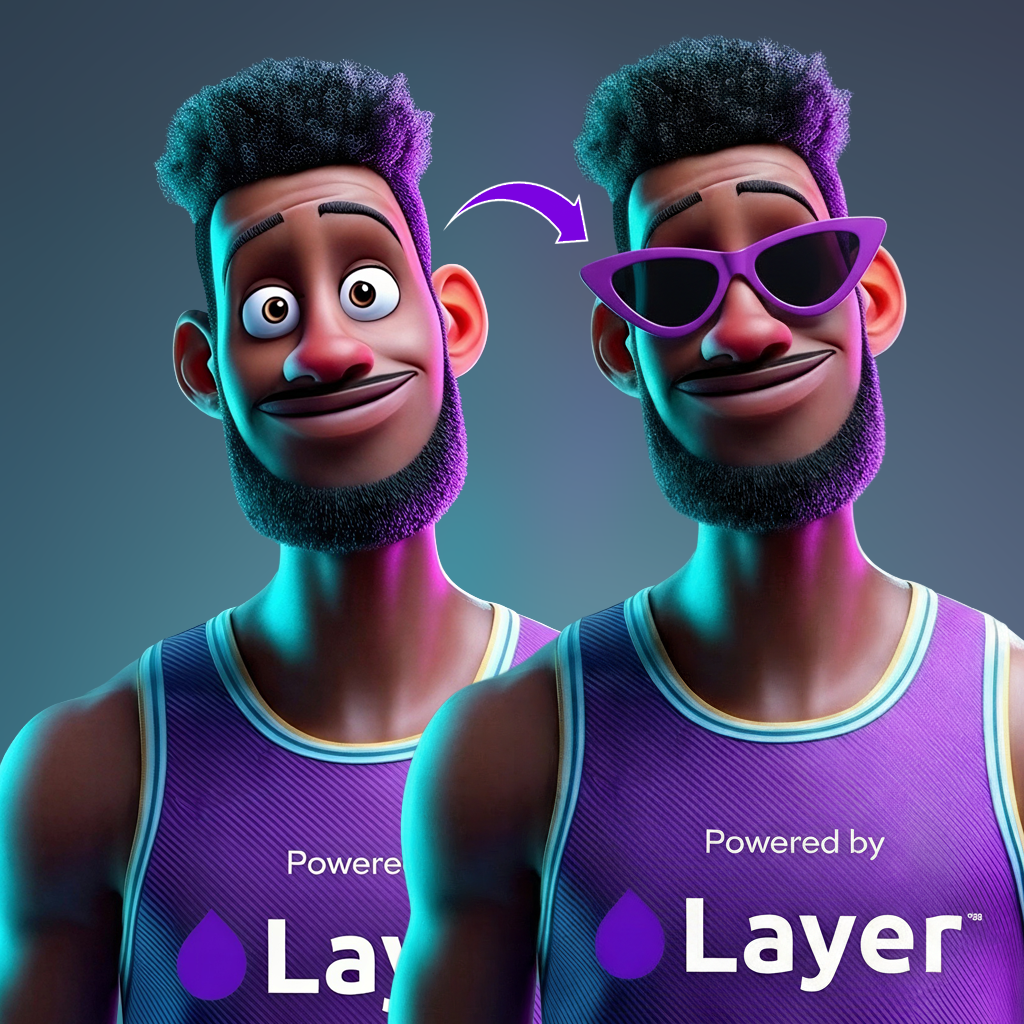
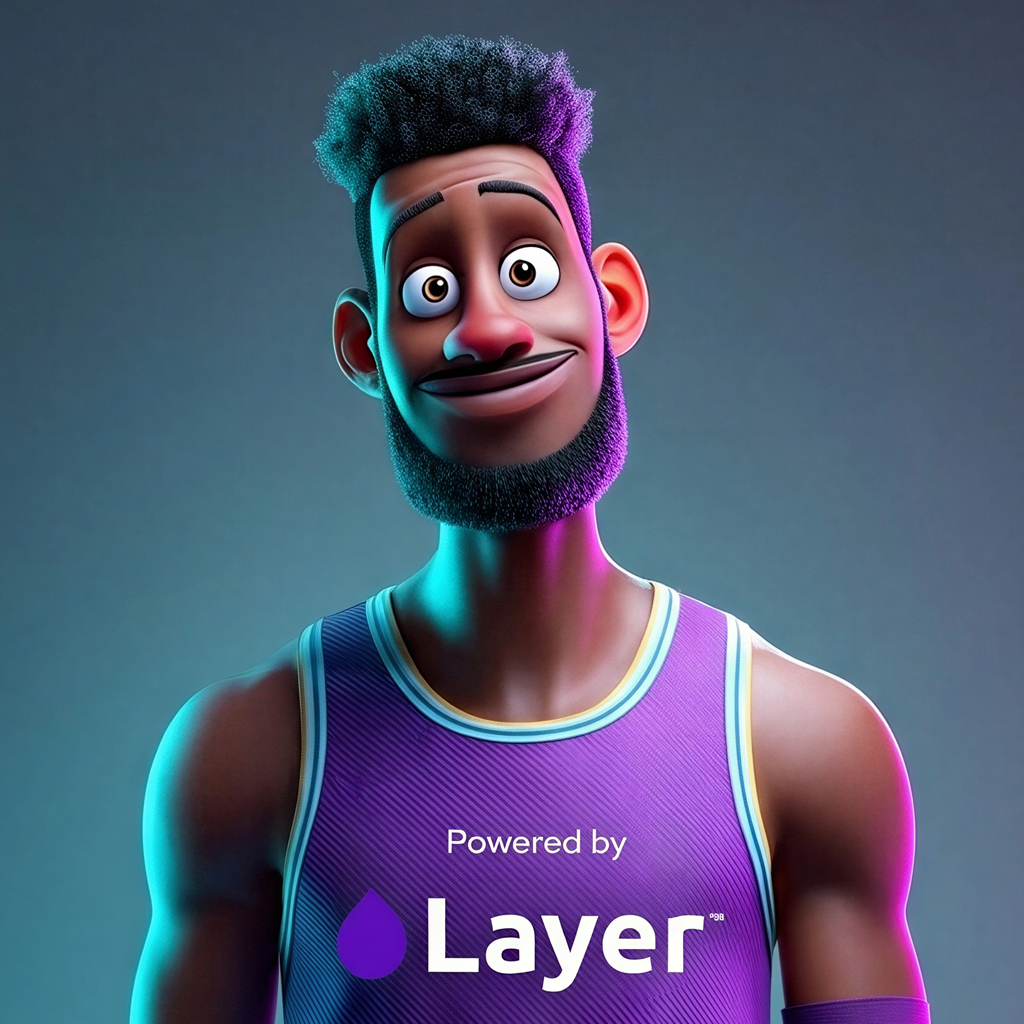
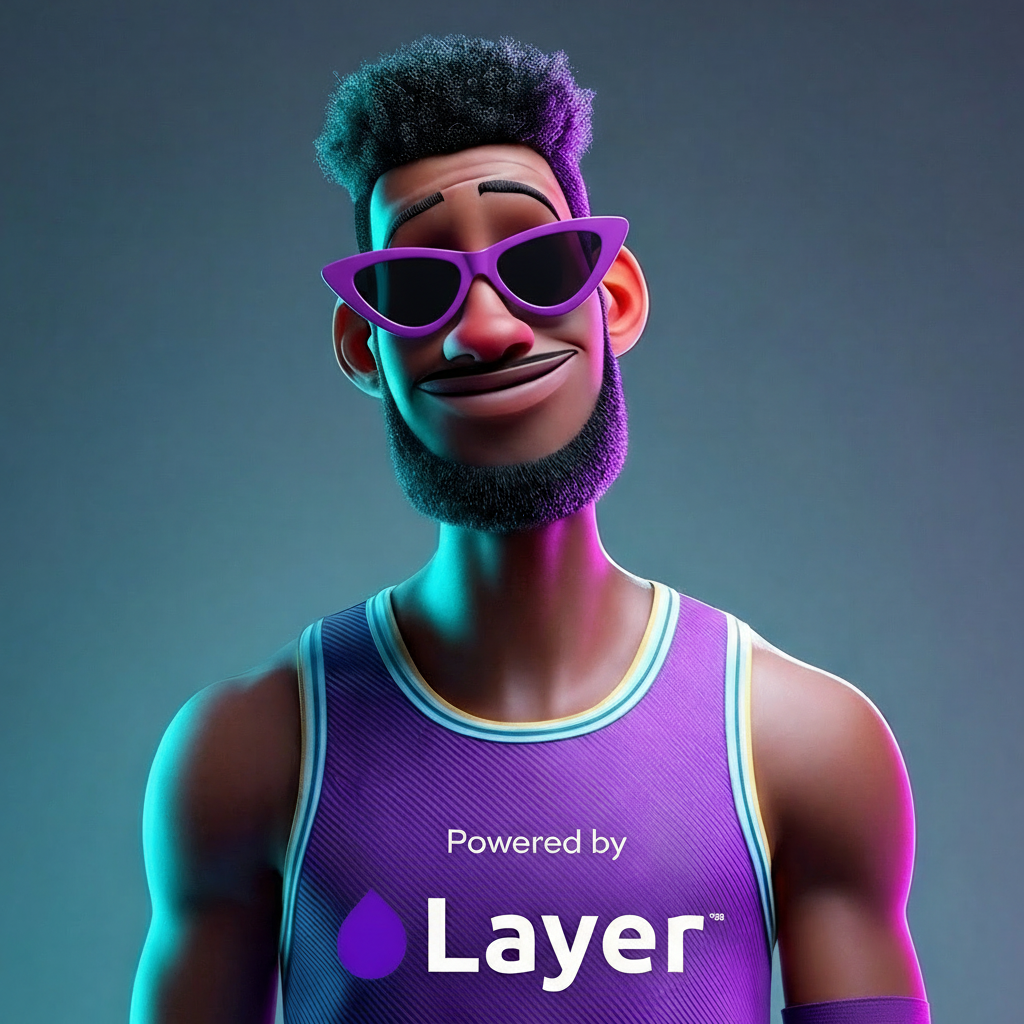
How To Use AI Reference-Guided Object Placement
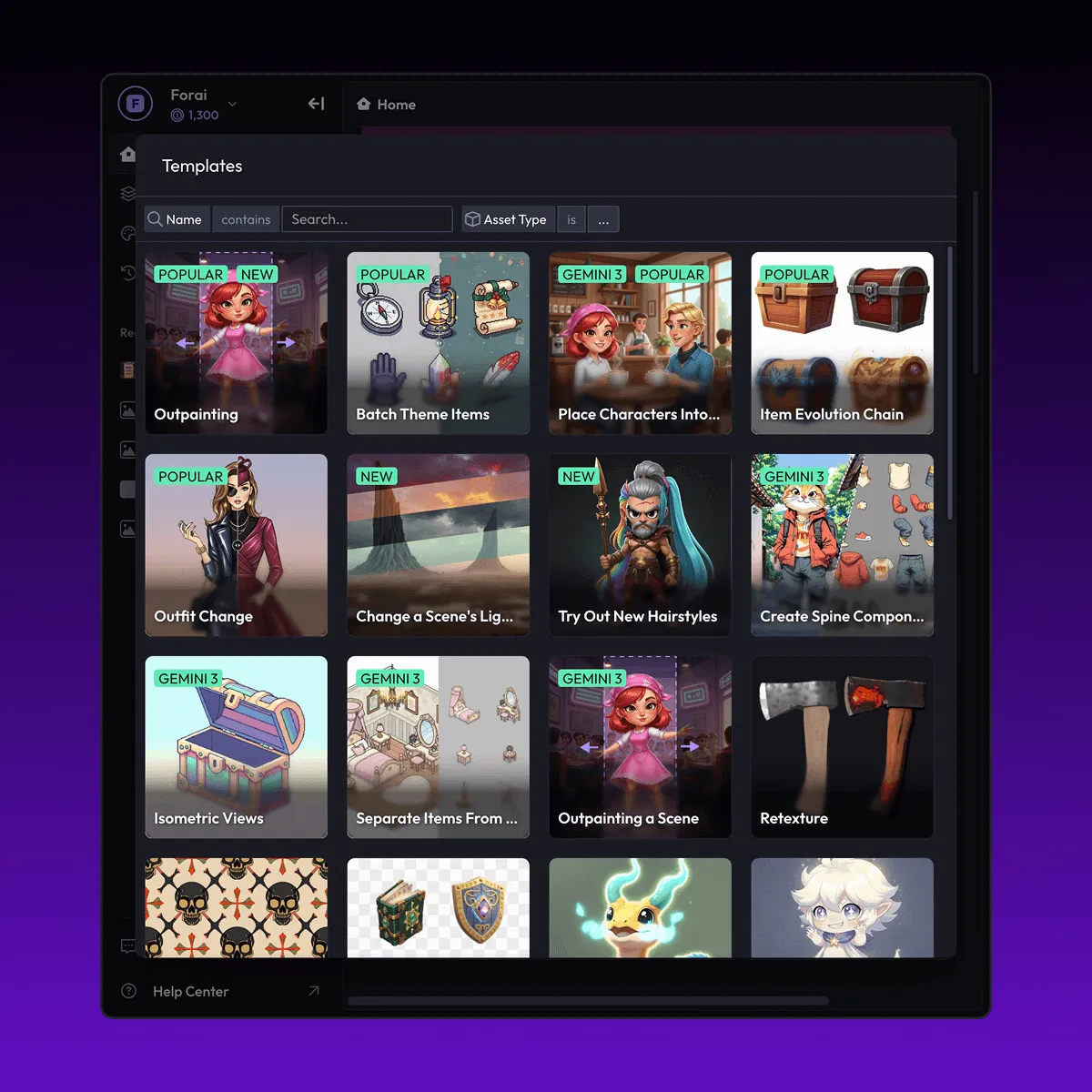
Choose
Select Add Reference To Image from the template library in your Layer workspace.
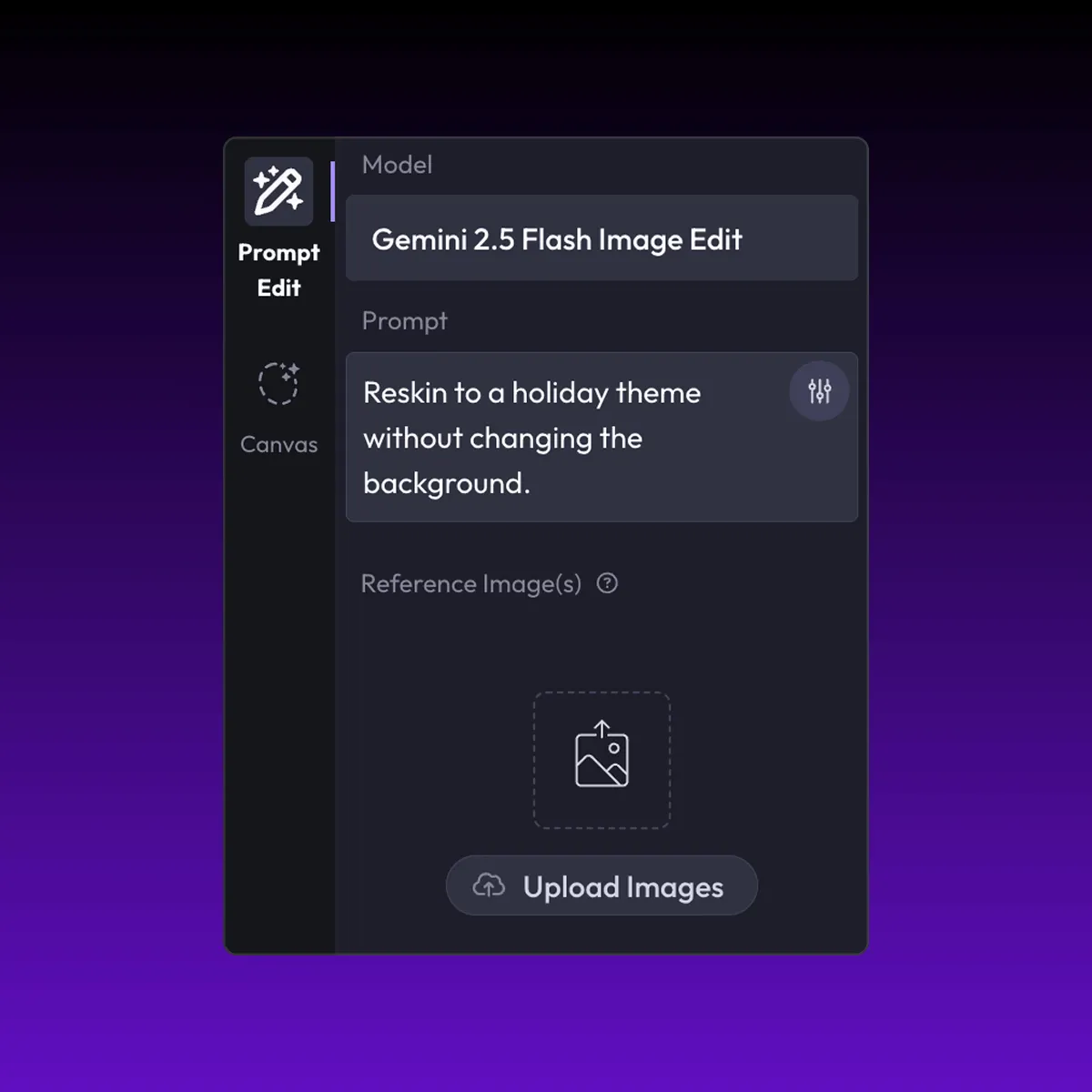
Adjust
Upload your reference images, adjust parameters and customize settings for your specific needs.
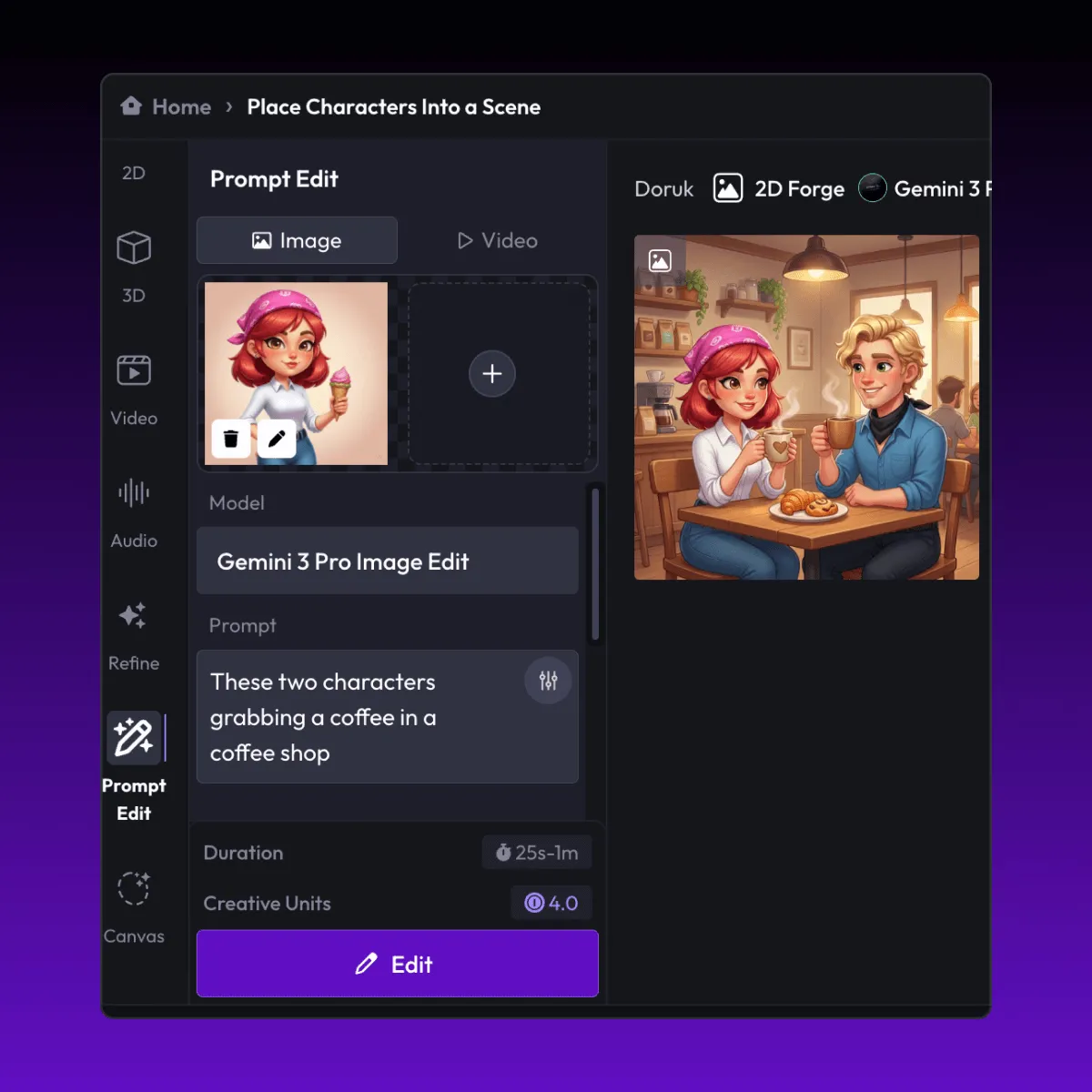
Generate
Hit generate and Layer produces your results. Refine, iterate, or batch-produce at scale.
Place objects into scenes using reference images
Add new elements to an existing scene by providing a reference image of the object you want inserted. Layer matches the lighting, perspective, and art style of the base image so the addition looks like it was part of the original composition.
Add props, accessories, and cosmetics to character art
Equip characters with new weapons, armor pieces, hats, or cosmetic items by supplying a reference photo of the accessory. This lets concept artists and designers explore cosmetic variations rapidly without re-rendering entire character models.
Enrich environments with additional scene elements
Populate backgrounds and environments with furniture, foliage, vehicles, or architectural details sourced from reference images. Scene enrichment helps environment artists iterate on level compositions and mood boards faster than traditional workflows.
Create composite assets from multiple references
Combine elements from separate reference images into a single cohesive asset. This is ideal for assembling key art, promotional compositions, and concept pitches where multiple visual ideas need to coexist in one scene with consistent style and lighting.
FAQ
What does the Add Reference to Image Layer use case template do?
The Add Reference to Image Layer use case template allows you to add new objects, accessories, or elements into an existing image using a reference image, while matching the original style, lighting, and perspective.
When should I use this Add Reference to Image use case template?
Use this Layer use case template when you need to:
Add accessories, cosmetics, or props to characters
Insert new objects into an existing scene
Create visual variations without re-rendering the entire image
Test cosmetic or item concepts quickly
Does this use case template match lighting and art style automatically?
Yes. The template analyzes the base image and applies the reference object in a way that matches lighting, shading, color balance, and overall art style.
Can I control where the referenced object is placed?
Yes. You can specify placement, scale, orientation, and context to ensure the added object integrates naturally into the scene.
Is this useful for cosmetics, skins, and LiveOps content?
Absolutely. This use case template is commonly used for cosmetic previews, LiveOps variations, UA creatives, and rapid iteration on visual ideas.
Can I batch apply references to multiple images?
Yes. The Add Reference to Image Layer use case template supports batch processing, making it easy to apply the same reference object across many assets.
What types of reference images work best with this use case template?
Clear, well-lit reference images with defined shapes and materials work best. Transparent backgrounds are recommended but not required.
More questions? Check out our Help Center .