AI Scene Outpainting Tool
Gallery
How To Use AI Scene Outpainting Tool
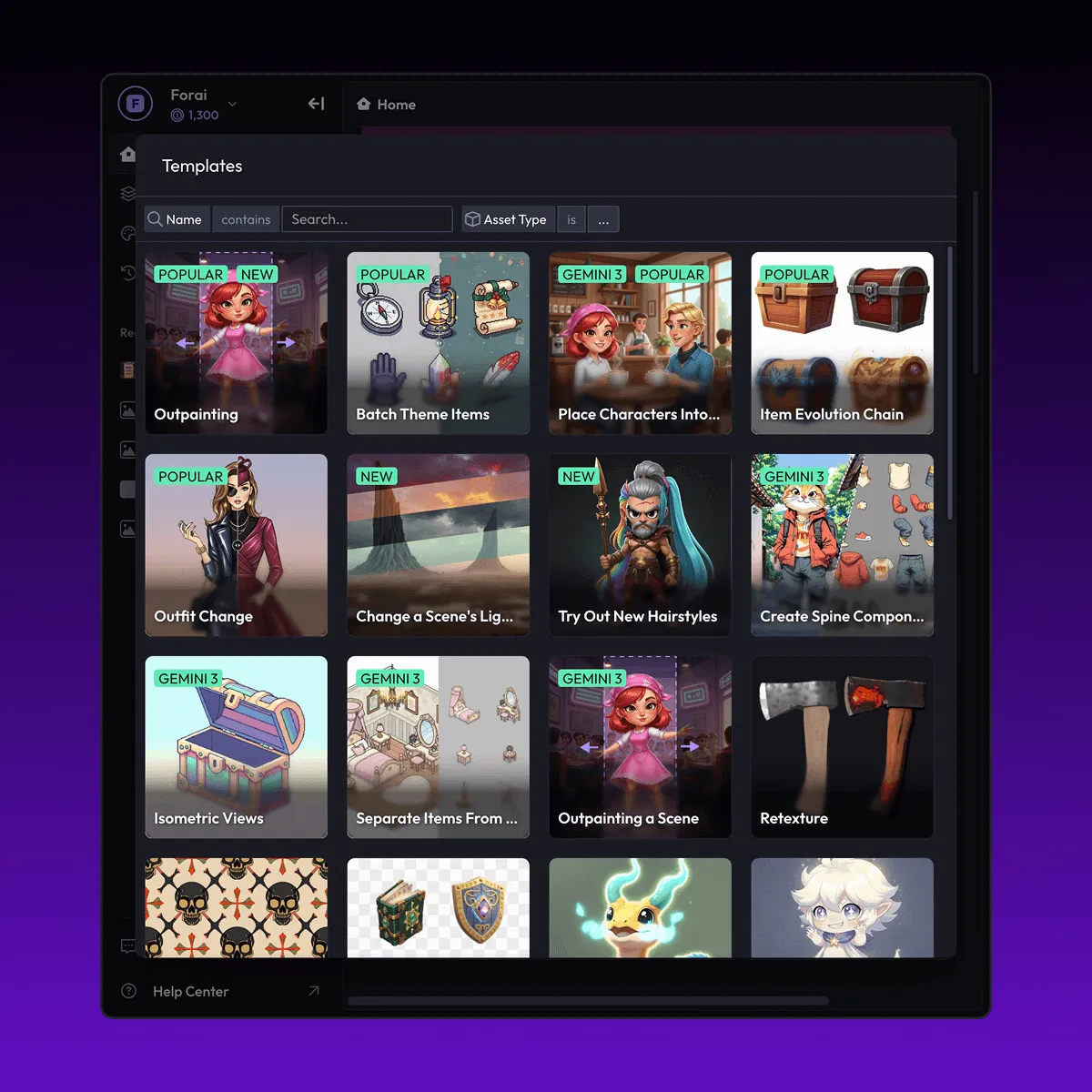
Choose
Select Outpainting a Scene from the template library in your Layer workspace.
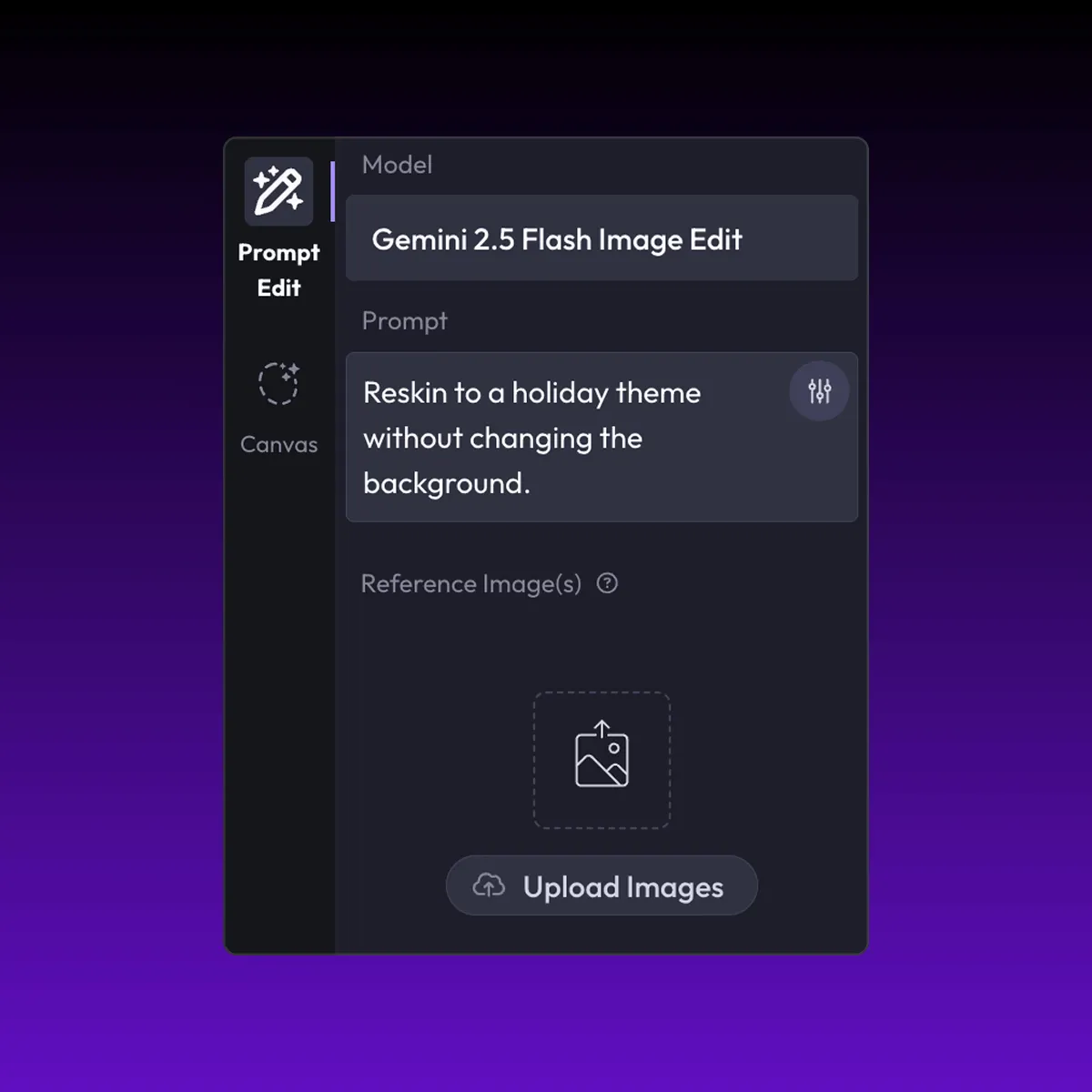
Adjust
Upload your reference images, adjust parameters and customize settings for your specific needs.
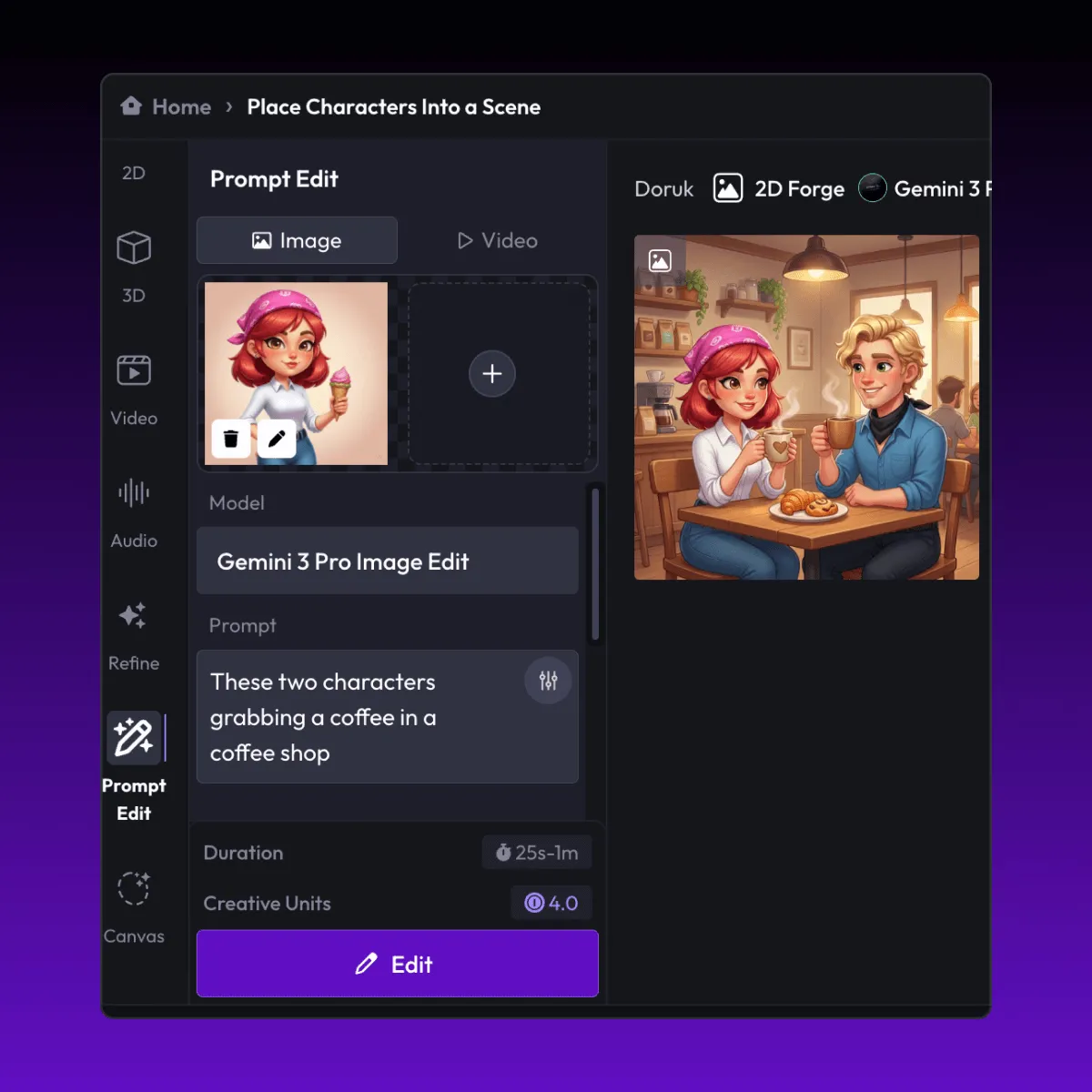
Generate
Hit generate and Layer produces your results. Refine, iterate, or batch-produce at scale.
Scene Extension and Environment Expansion
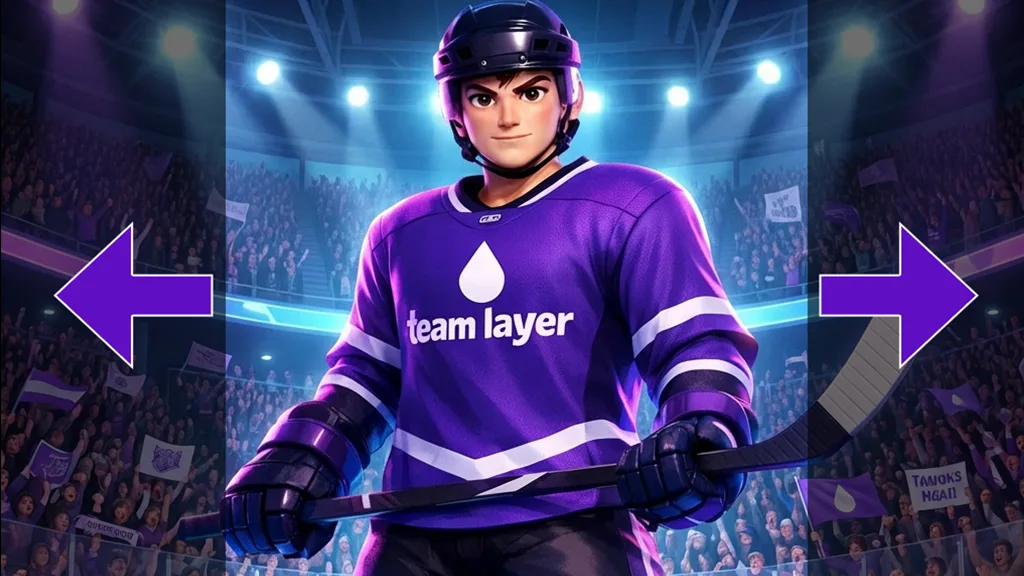
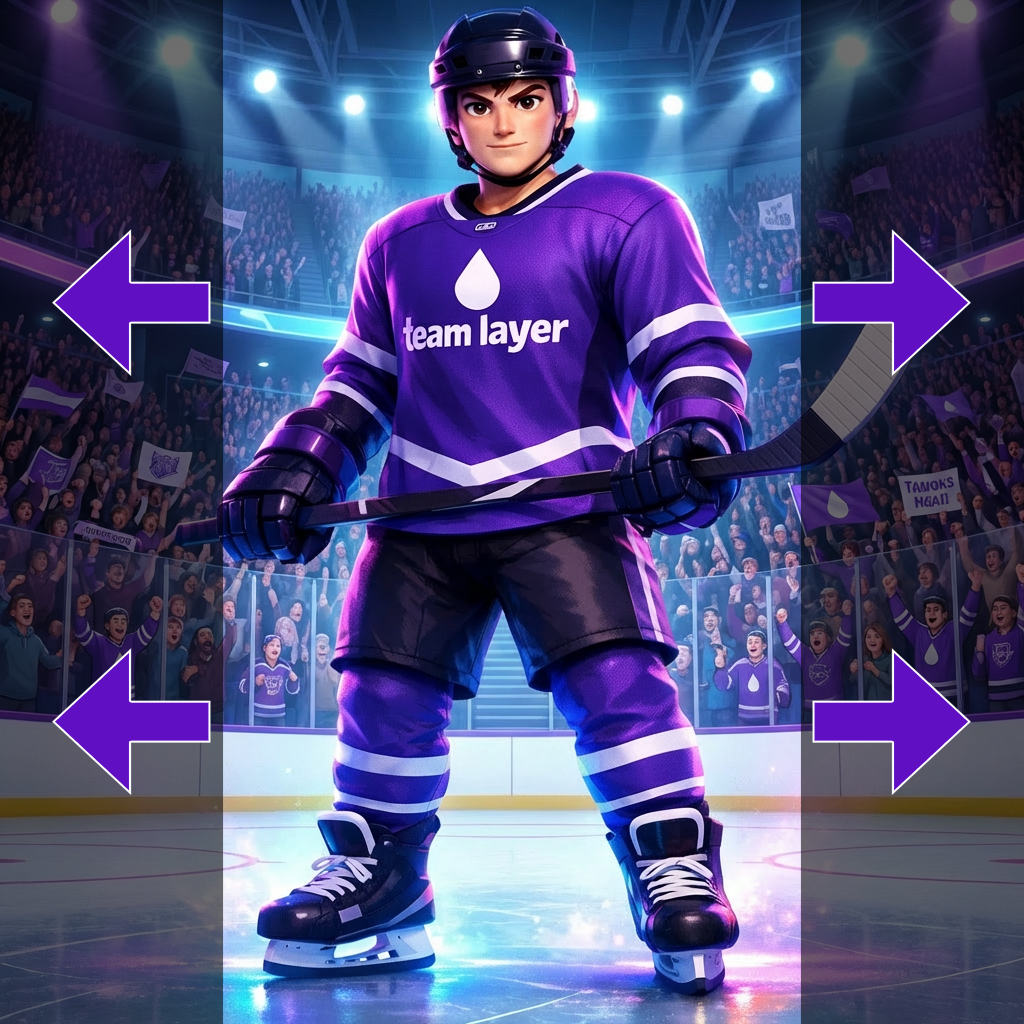
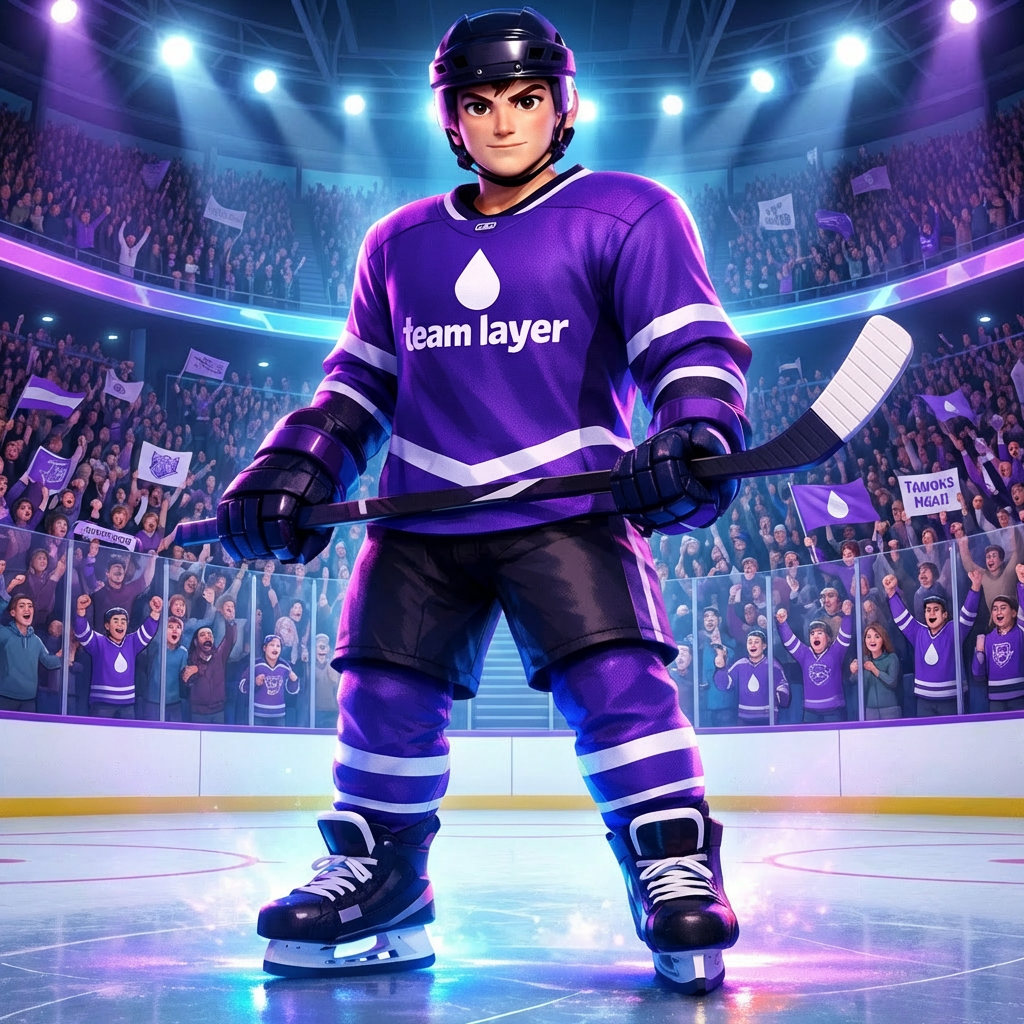
Extend game scenes beyond their original boundaries to create larger, more immersive environments. Layer generates new content that seamlessly matches the existing art style, lighting, and perspective, letting studios expand worlds without manual painting.
Environment Canvas Extension for New Aspect Ratios
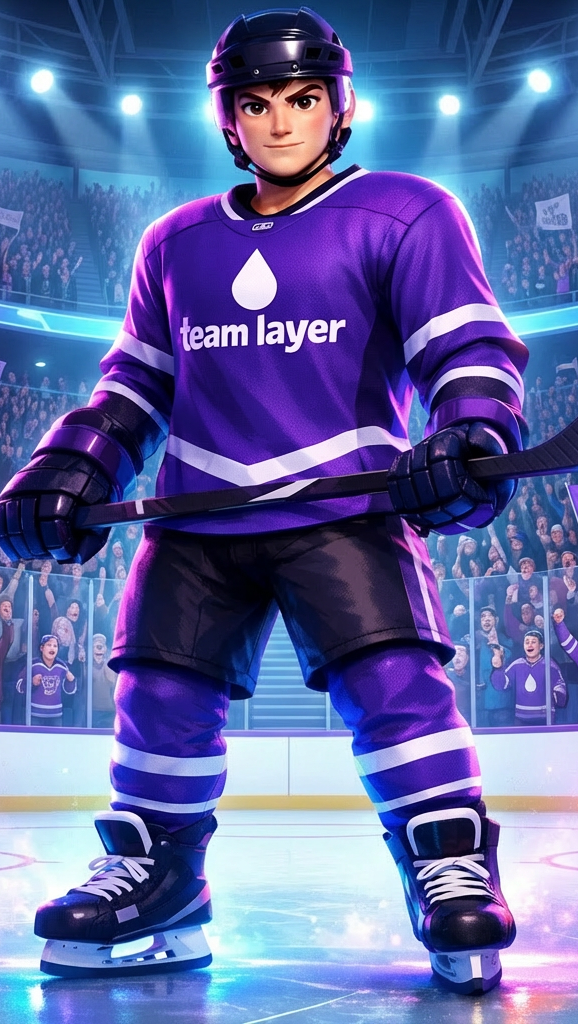
Adapt existing scene art to new aspect ratios and screen formats by expanding the canvas in any direction. Repurpose landscape backgrounds for portrait UA creatives, ultrawide displays, or platform-specific requirements without cropping or stretching.
Panoramic Scene Creation from Partial Art
Transform a single scene into a wide panoramic composition by extending it horizontally. This is ideal for parallax backgrounds, loading screens, and cinematic sequences where a broader field of view is needed.
Filling Incomplete Compositions
Complete scenes that have transparent or missing areas by generating context-aware fill content. Recover partially cropped backgrounds, fill gaps left by removed elements, or extend scenes that were cut short during the original production process.
FAQ
What does the Outpainting a Scene Layer use case template do?
The Outpainting a Scene Layer use case template expands transparent or cropped areas of a scene to create a complete, seamless composition that matches the original environment.
When should I use this Outpainting a Scene use case template?
Use this Layer use case template when you need to:
Extend environments for new aspect ratios
Adapt scenes for UA creatives or trailers
Reuse existing backgrounds without repainting
Does this use case template preserve characters and scene structure?
Yes. Original characters, props, and composition remain unchanged; only the extended areas are generated.
Can I control what appears in the extended areas?
Yes. You can prompt specific environment elements such as buildings, terrain, sky, or props.
Is this useful for LiveOps and seasonal events?
Absolutely. It’s commonly used to create seasonal or event-themed scene extensions quickly.
Can I batch outpaint multiple scenes?
Yes. Batch processing is supported for scalable production via both Prompt Edit and Layer workflows.
What formats work best with this use case template?
PNG is recommended, especially when transparency is involved.
More questions? Check out our Help Center .