AI Batch Item Theme Applicator

Gallery






How To Use AI Batch Item Theme Applicator
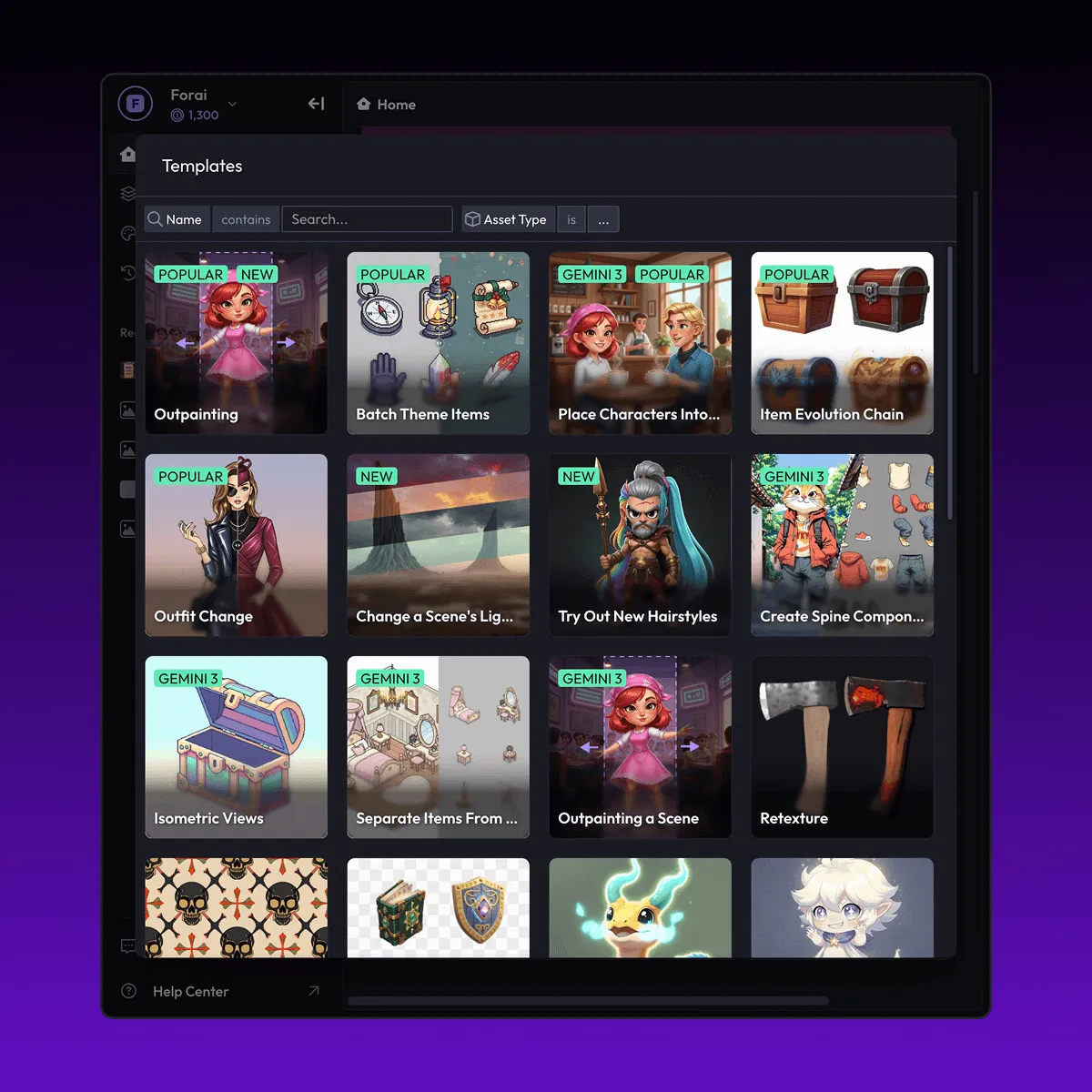
Choose
Select Batch Theme Items from the template library in your Layer workspace.
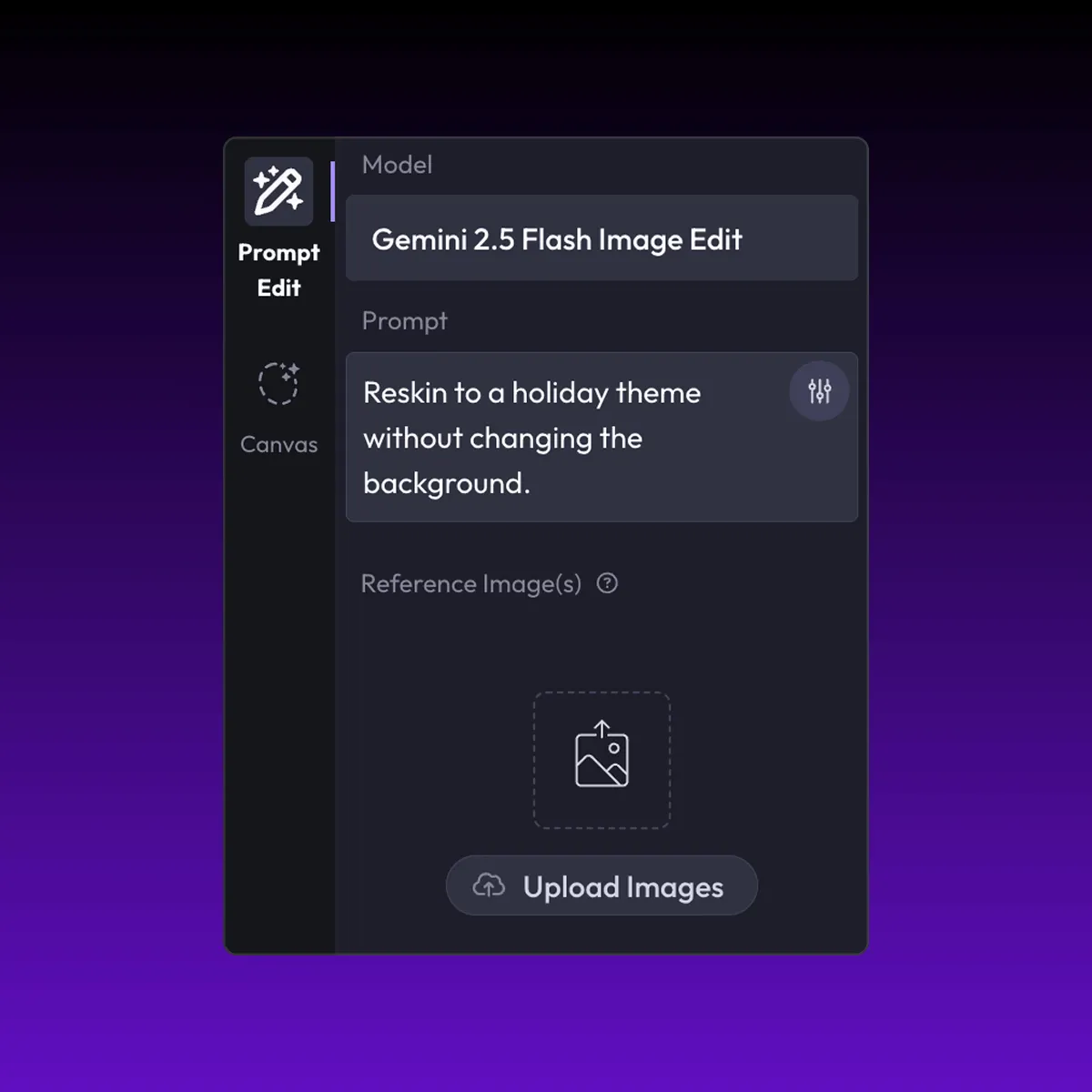
Adjust
Upload your reference images, adjust parameters and customize settings for your specific needs.
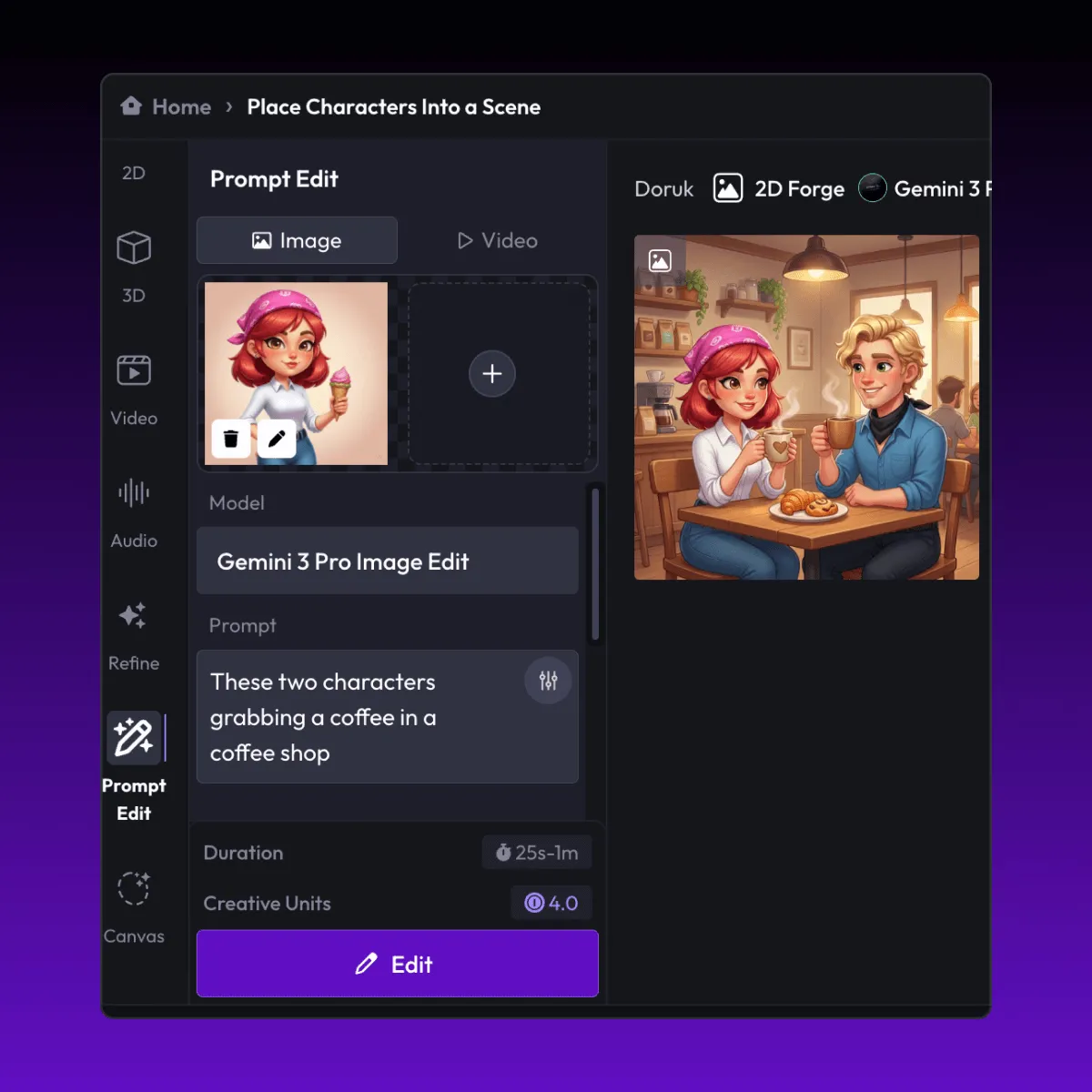
Generate
Hit generate and Layer produces your results. Refine, iterate, or batch-produce at scale.
Apply consistent themes across entire item collections
Restyle hundreds of items, props, or collectibles with a unified visual theme in a single batch. Layer preserves each item's silhouette and proportions while transforming surface materials, colors, and decorative details to match your target aesthetic.
Seasonal event reskinning for LiveOps content
Generate Halloween, winter holiday, lunar new year, or any seasonal variant of your existing item catalog without manual art production. Batch theming lets LiveOps teams ship themed content drops on tight schedules while maintaining visual consistency.
Generate themed holiday and limited-edition collections
Create limited-time cosmetic sets, holiday bundles, and event-exclusive items by applying a shared visual direction to your base assets. This approach maximizes content output from existing art while keeping each collection visually cohesive.
Maintain consistent styling across batch-processed assets
Ensure that every item in a themed set shares the same color palette, material treatment, and decorative motifs. Batch theming eliminates the drift that occurs when multiple artists work on the same collection, delivering a unified look across your entire catalog.
FAQ
What does the Batch Theme Items Layer use case template do?
The Batch Theme Items Layer use case template applies a consistent visual theme across multiple items or assets in a single workflow.
When should I use this Batch Theme Items use case template?
Use this Layer use case template when creating:
Seasonal or event-based item variants
Rarity tiers or themed item sets
Consistent cosmetic collections
Does this use case template preserve item shapes and silhouettes?
Yes. Core shapes and proportions remain unchanged; only visual styling is updated.
Can I define the theme or style?
Yes. You can specify themes, references, or style directions to guide the results.
Is this useful for LiveOps and monetization content?
Very. It’s commonly used for LiveOps drops, cosmetic bundles, and limited-time events.
Can I batch-process large item libraries?
Yes. This use case template is designed for high-volume batch workflows. You can do this via Prompt Edit for smal and Layer workflows for larger sets.
What types of items work best?
Icons, props, collectibles, and clearly defined items work especially well.
More questions? Check out our Help Center .