AI Item Style Transfer
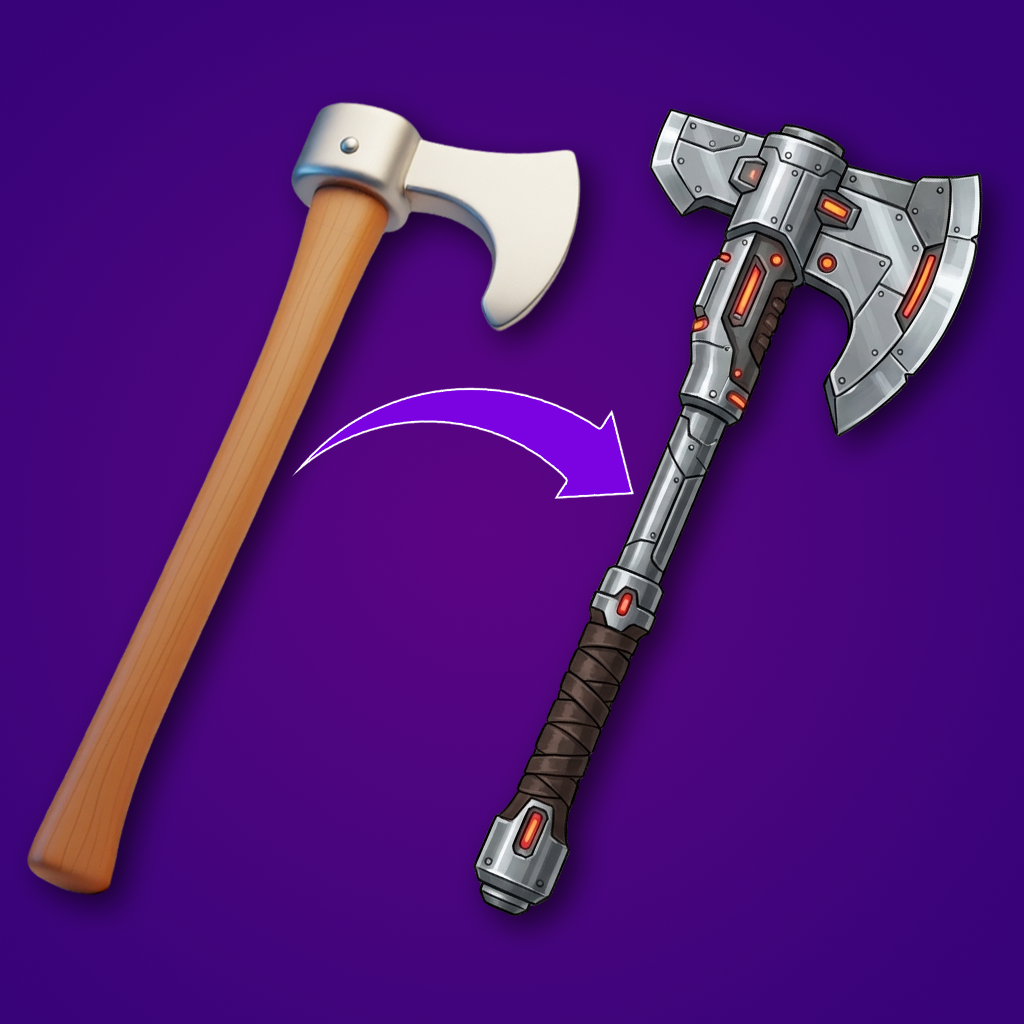
Gallery
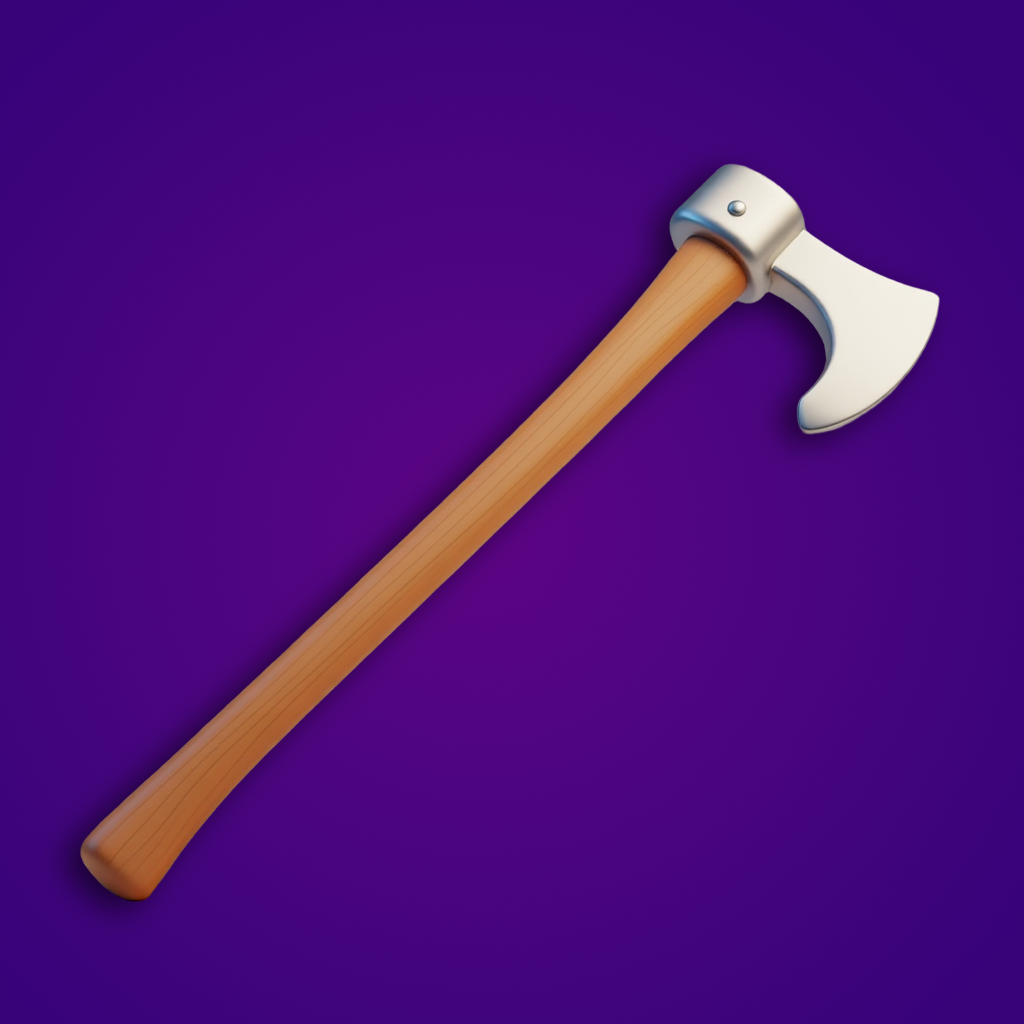
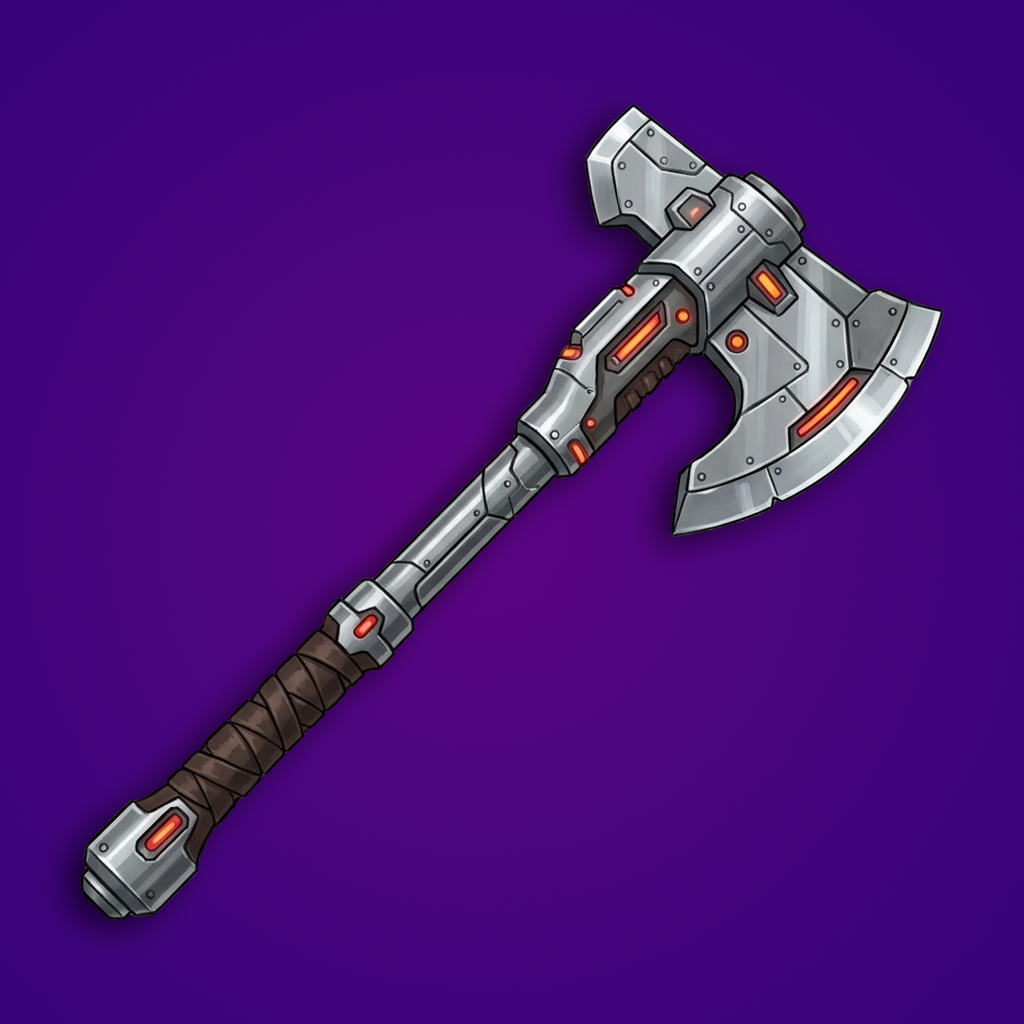
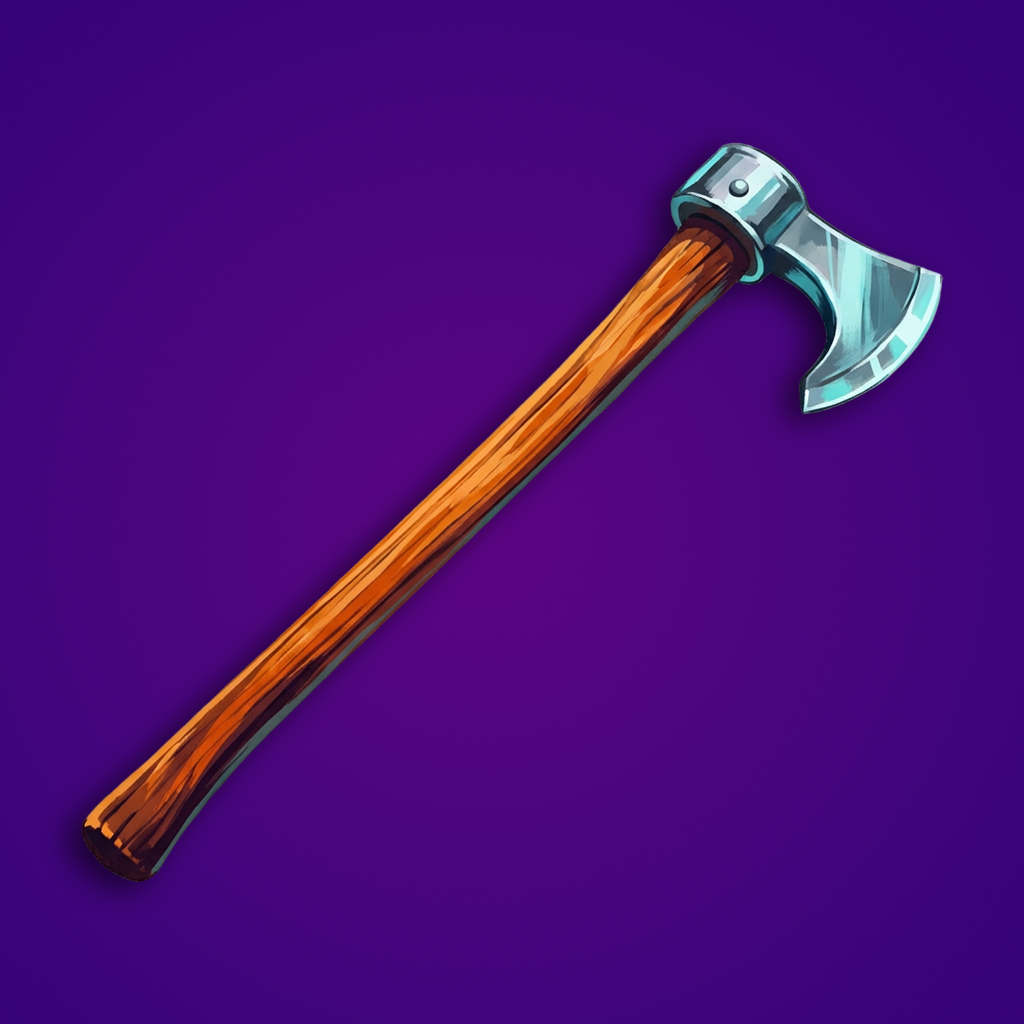
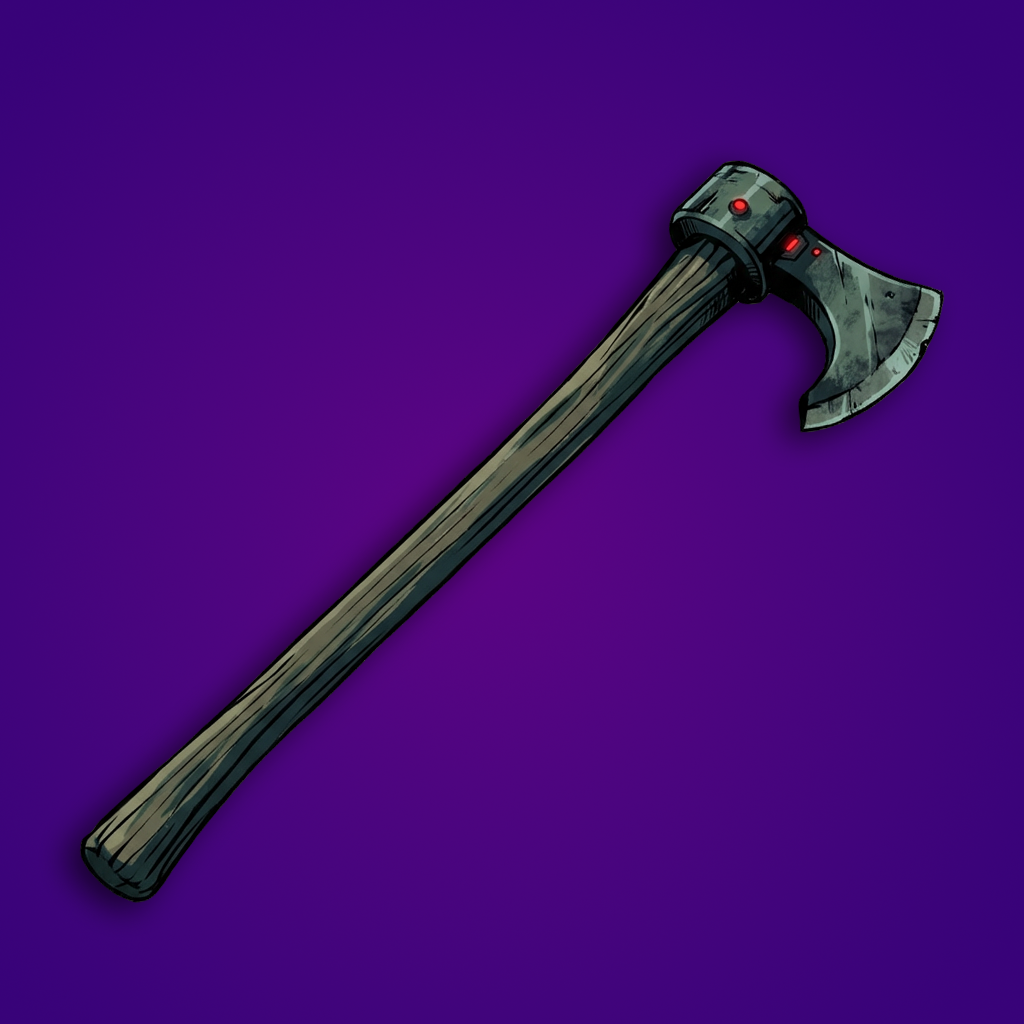
How To Use AI Item Style Transfer
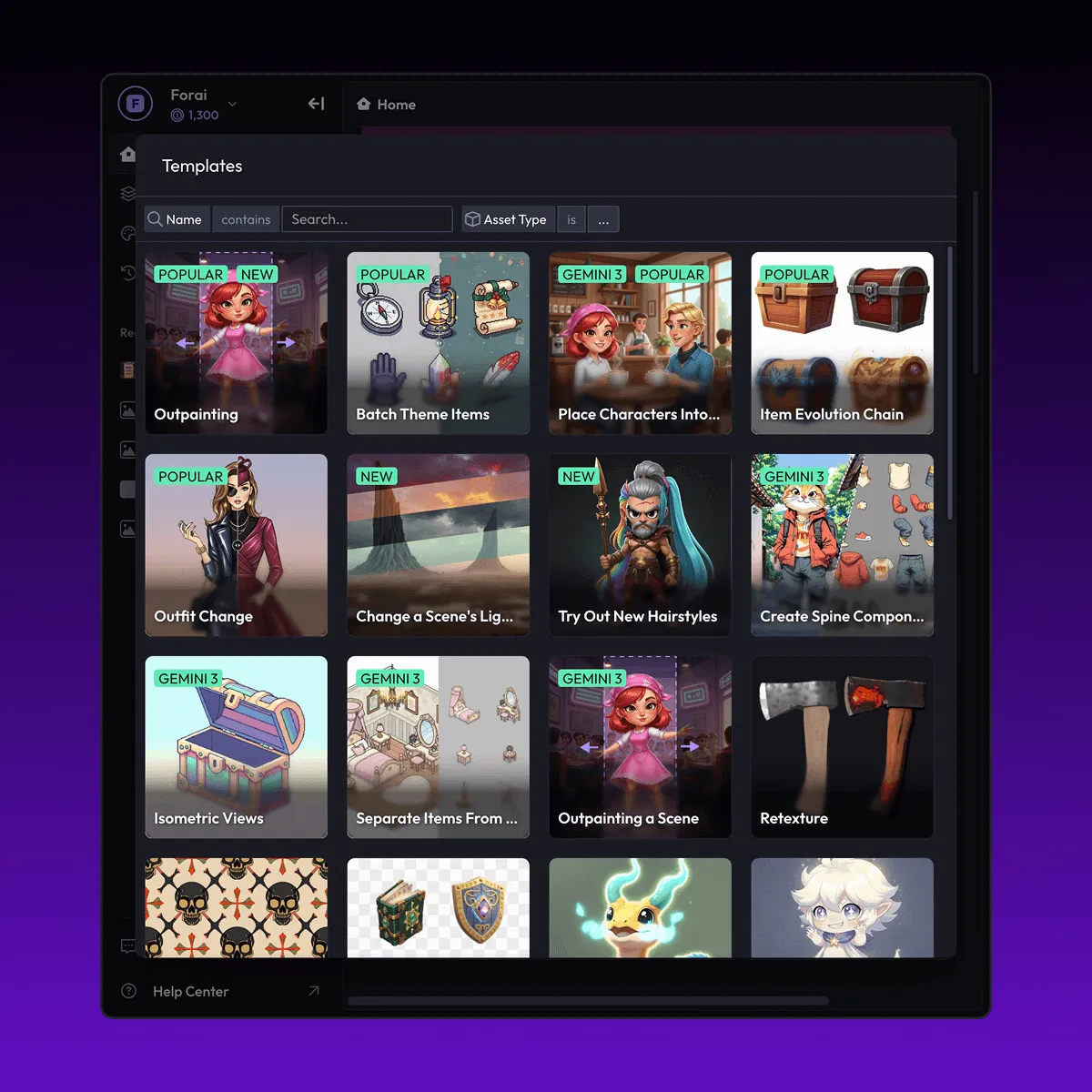
Choose
Select Style Transfer to Item (Beta) from the template library in your Layer workspace.
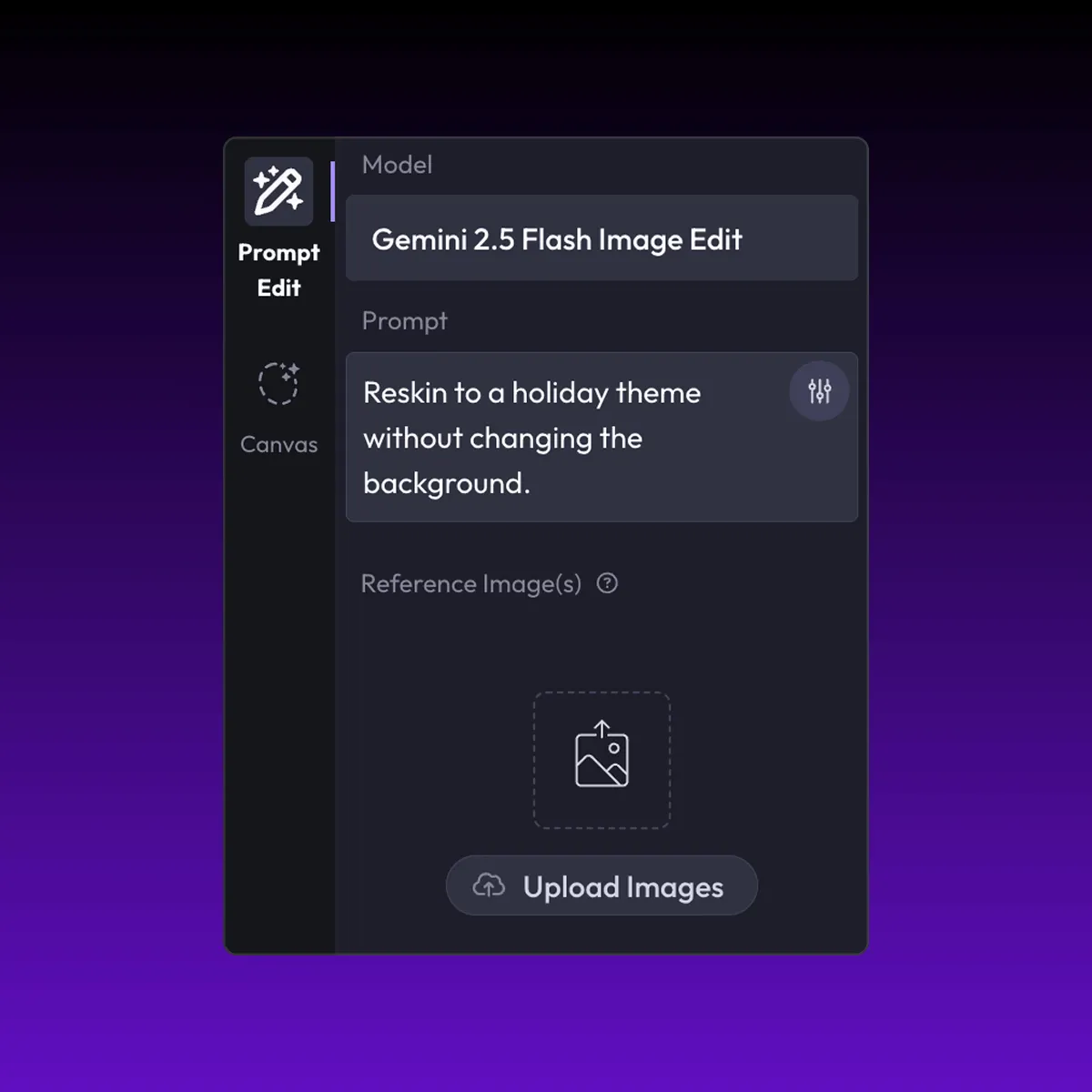
Adjust
Upload your reference images, adjust parameters and customize settings for your specific needs.
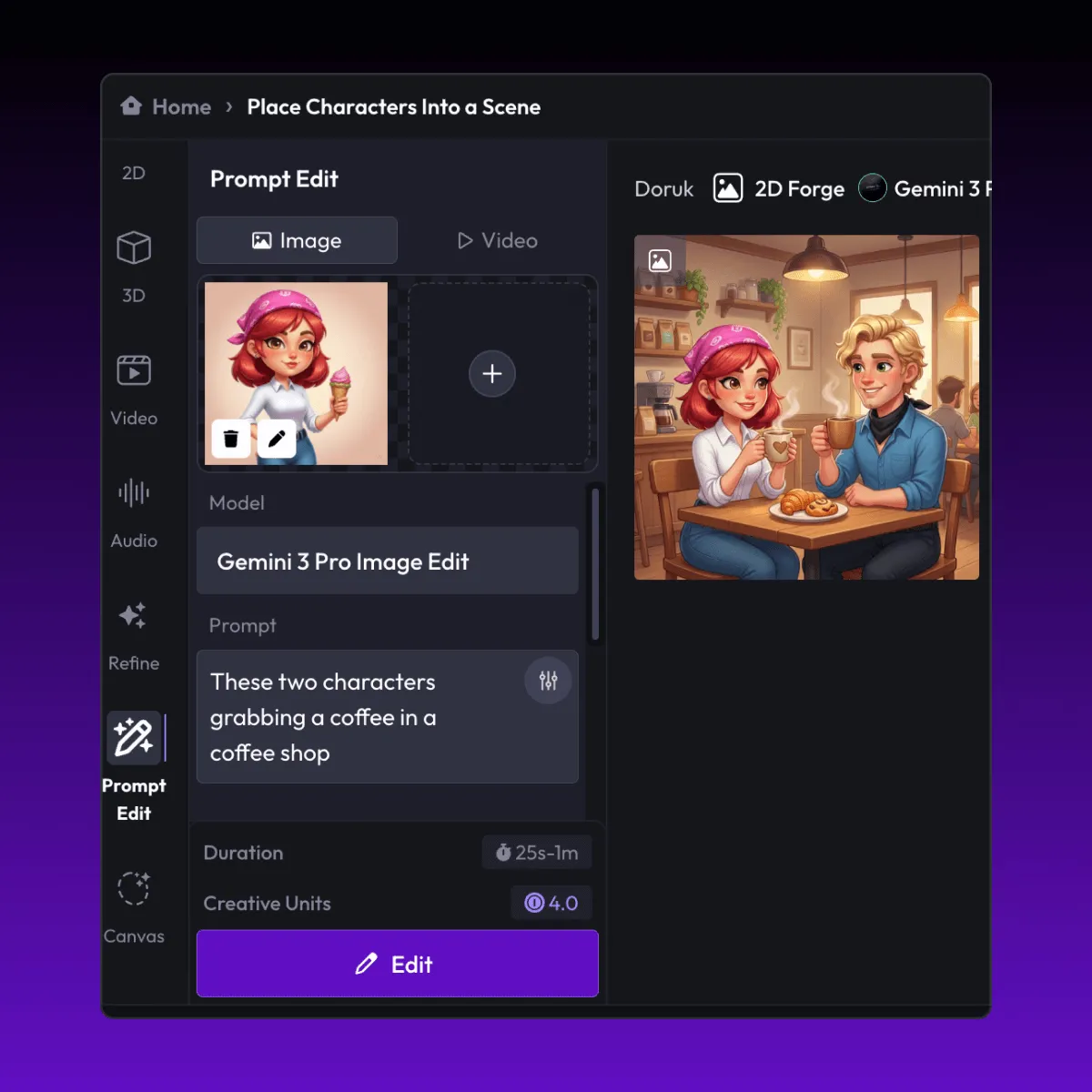
Generate
Hit generate and Layer produces your results. Refine, iterate, or batch-produce at scale.
Item Art Style Conversion
Convert individual items into a target art style defined by a reference image. Transform weapons, armor, consumables, or props to match a new visual direction without redrawing each asset manually.
Asset Art Style Matching for Consistency
Align items from different sources or artists to a single unified art style. This is essential when onboarding outsourced assets, merging art from multiple teams, or unifying legacy content with a refreshed visual identity.
Consistent Item Reskinning at Scale
Reskin entire item sets to match a new theme or event aesthetic while keeping silhouettes and readability intact. Produce seasonal, premium, or limited-edition item variants efficiently for LiveOps content drops.
Cross-Style Asset Exploration
Experiment with how your existing items would look in different art styles, from flat vector to hand-painted to anime. Evaluate visual directions for new game modes, collections, or IP collaborations before committing to full production.
FAQ
What does the AI Item Style Transfer template do?
This template applies the art style from a reference image to an individual item, transforming its visual treatment while preserving its shape and silhouette. Upload a reference for the target style and an item to transform.
When should I use this template?
Use this template when you need to:
Restyle items to match a new art direction
Unify outsourced or legacy assets with your current style
Create themed item variants for events or seasons
Explore visual directions before committing to production
Does it preserve the item's shape and proportions?
Yes. The style transfer changes surface treatment, color palette, and rendering style while keeping the item's silhouette and proportions intact, so it remains recognizable in-game.
What types of reference images work best?
Clear examples of the target art style work best — concept art, finished game assets, or illustrations that represent the visual direction you want. The template extracts style characteristics like brushwork, color treatment, and material rendering from the reference.
Can I batch-process multiple items?
Yes. Apply the same style reference across an entire set of items to restyle a collection, weapon set, or inventory category in a single batch operation.
Is this useful for LiveOps content?
Very much so. LiveOps teams use style transfer to rapidly produce themed item variants for seasonal events, limited-time collections, and promotional content drops without pulling artists from core development.
More questions? Check out our Help Center .