AI Scene Style Transfer
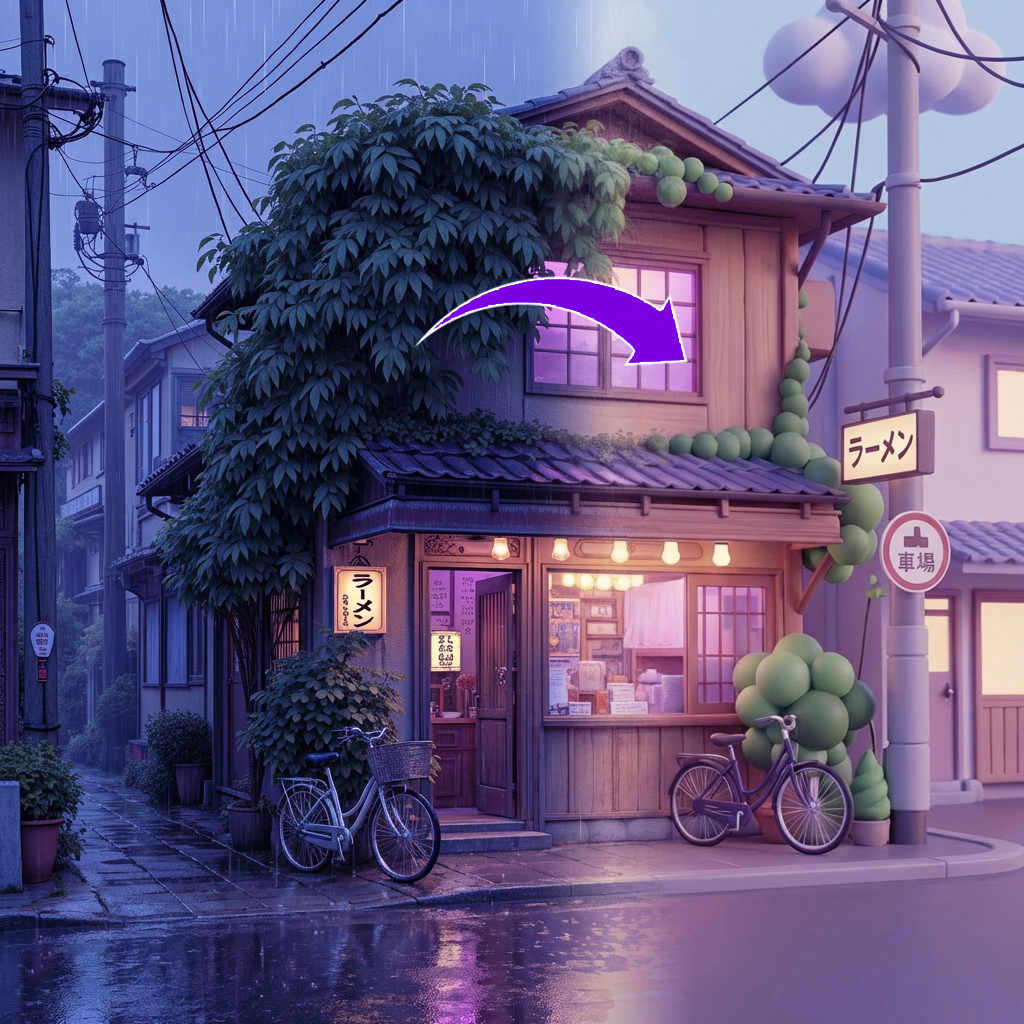
Gallery
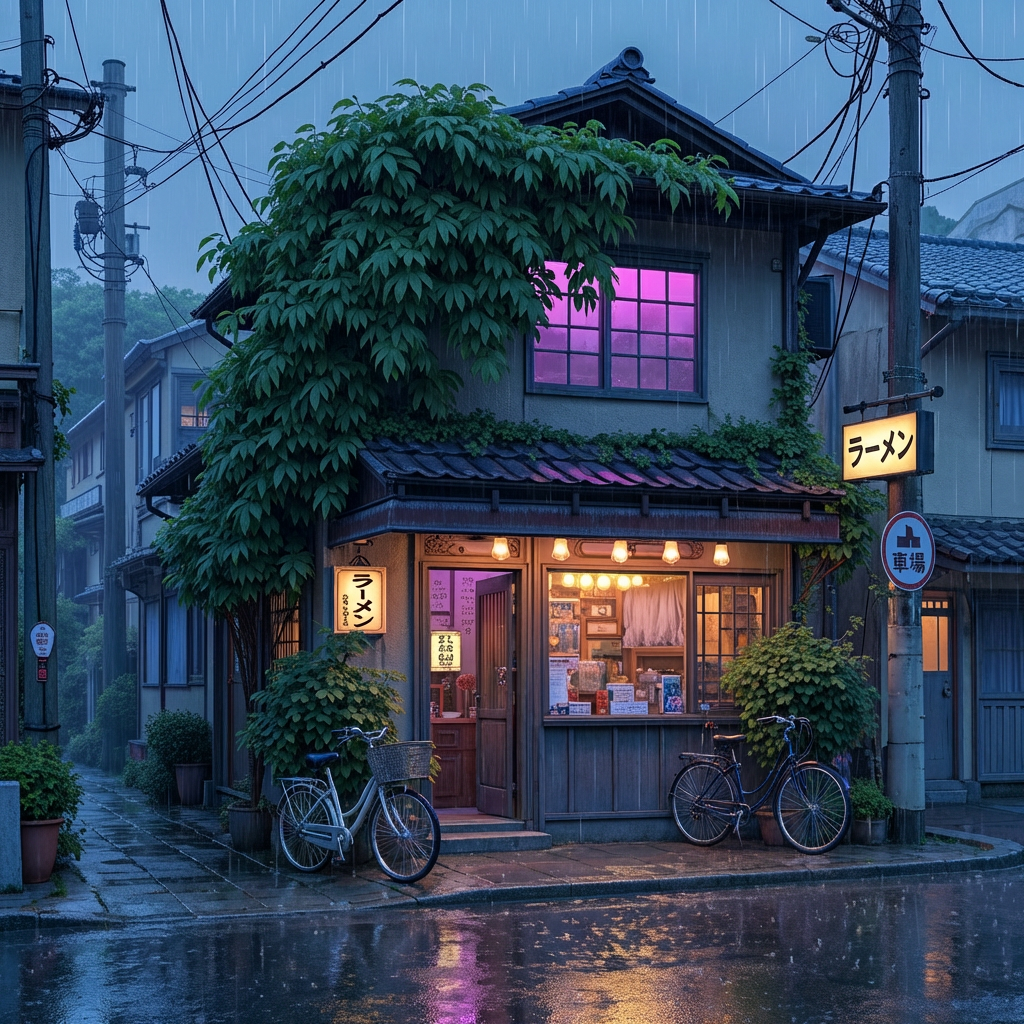
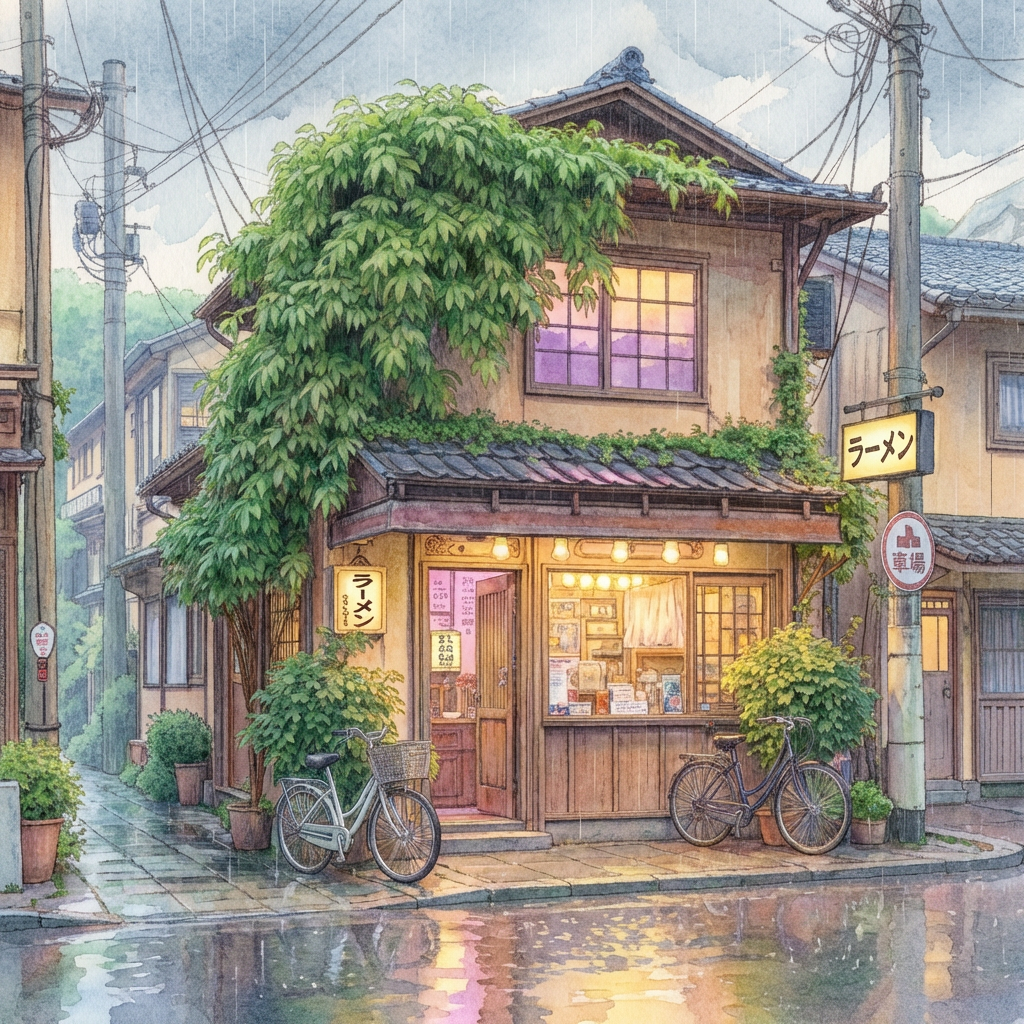
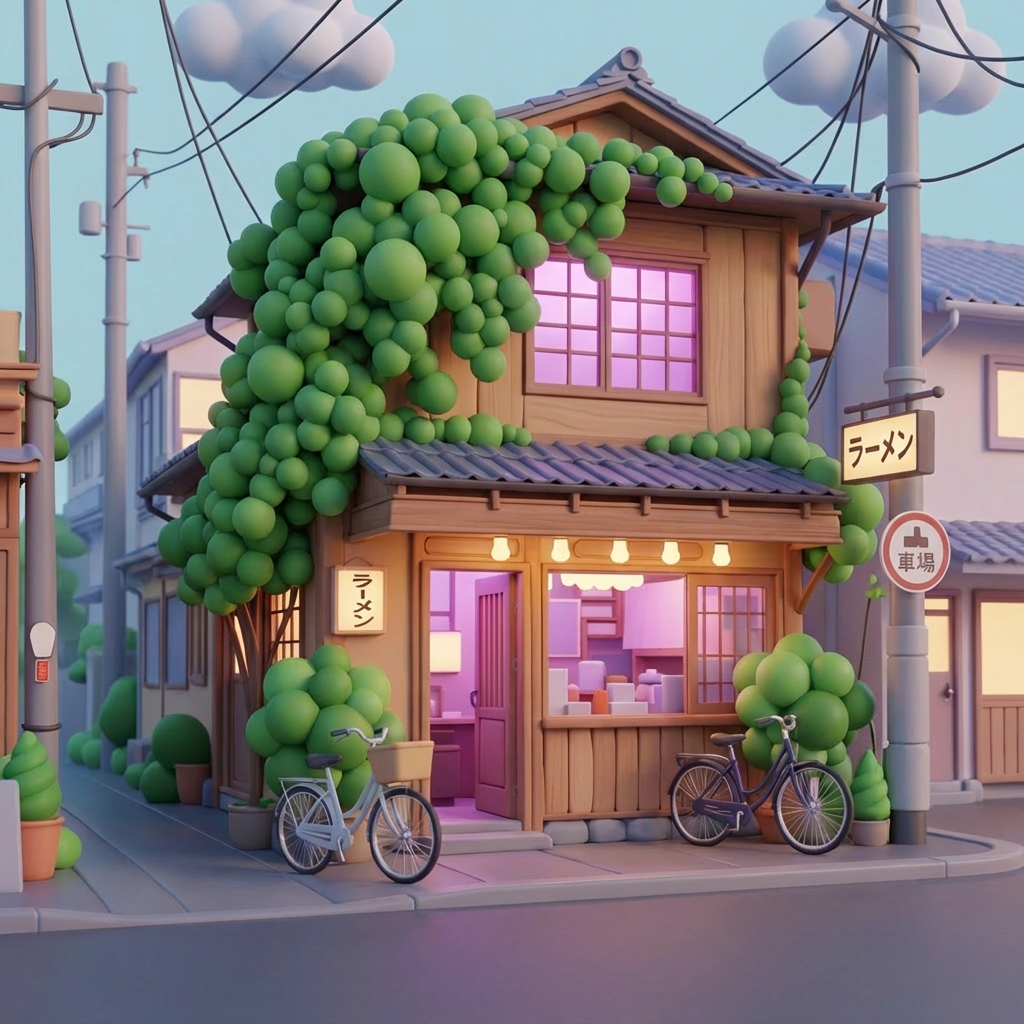
How To Use AI Scene Style Transfer
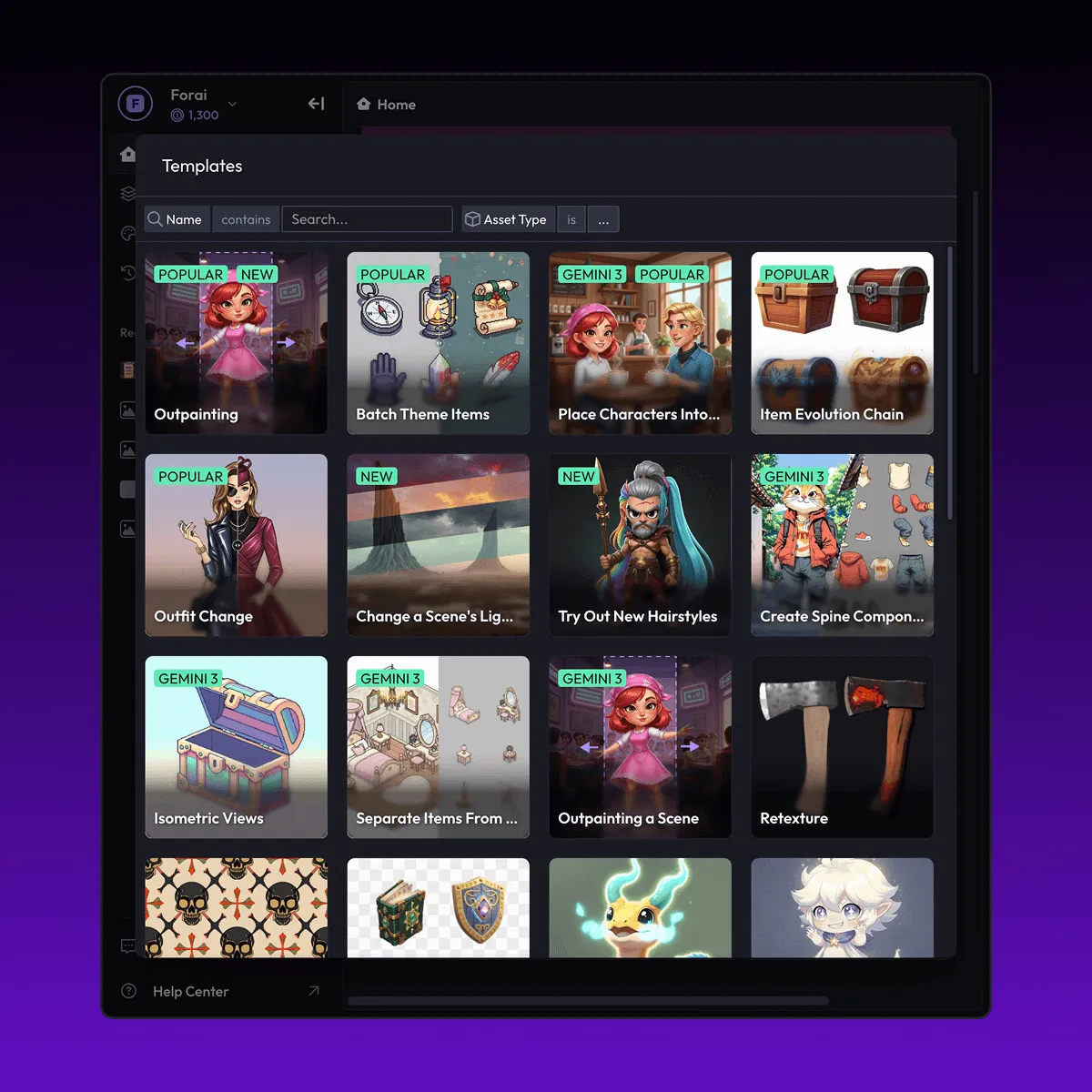
Choose
Select Style Transfer to Scene (Beta) from the template library in your Layer workspace.
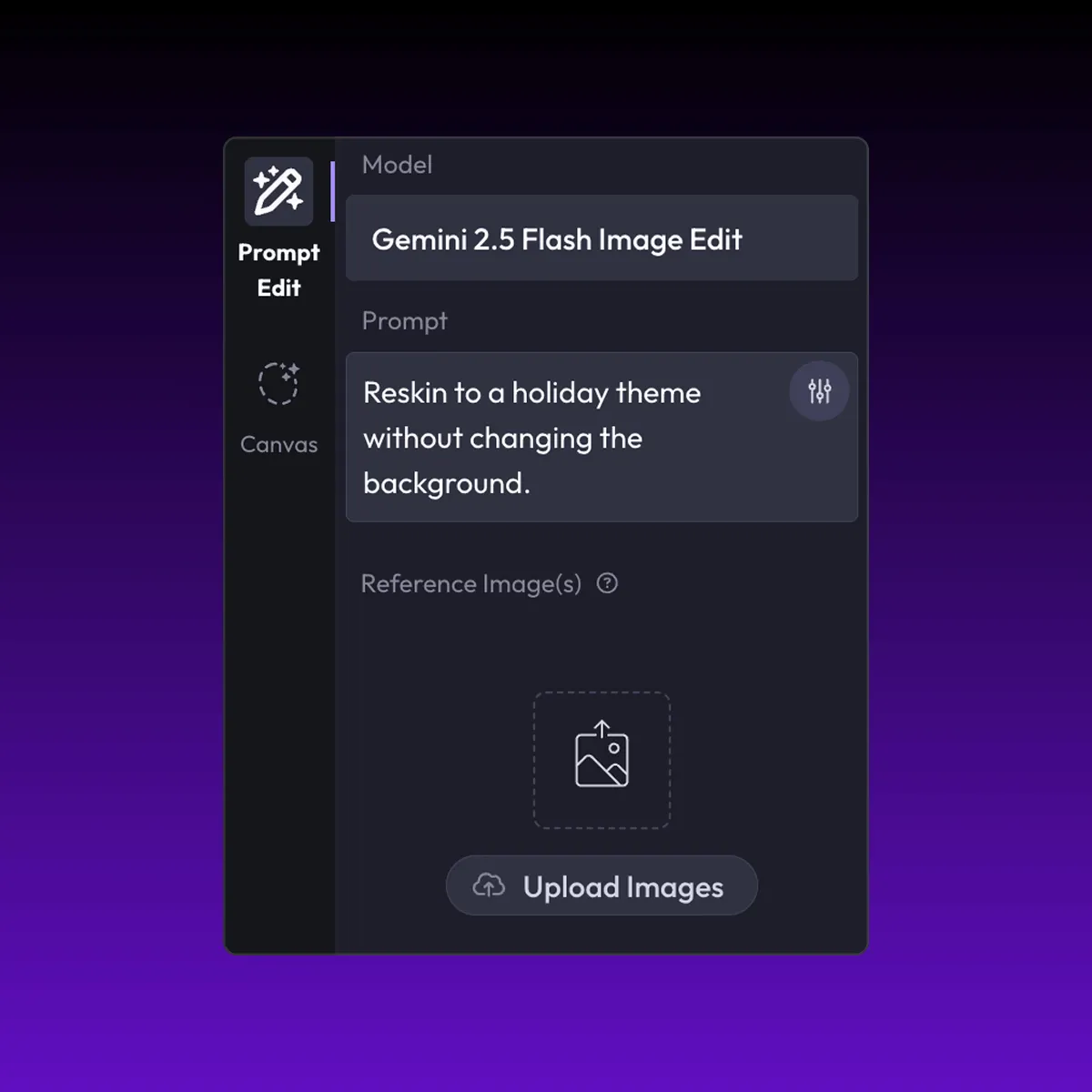
Adjust
Upload your reference images, adjust parameters and customize settings for your specific needs.
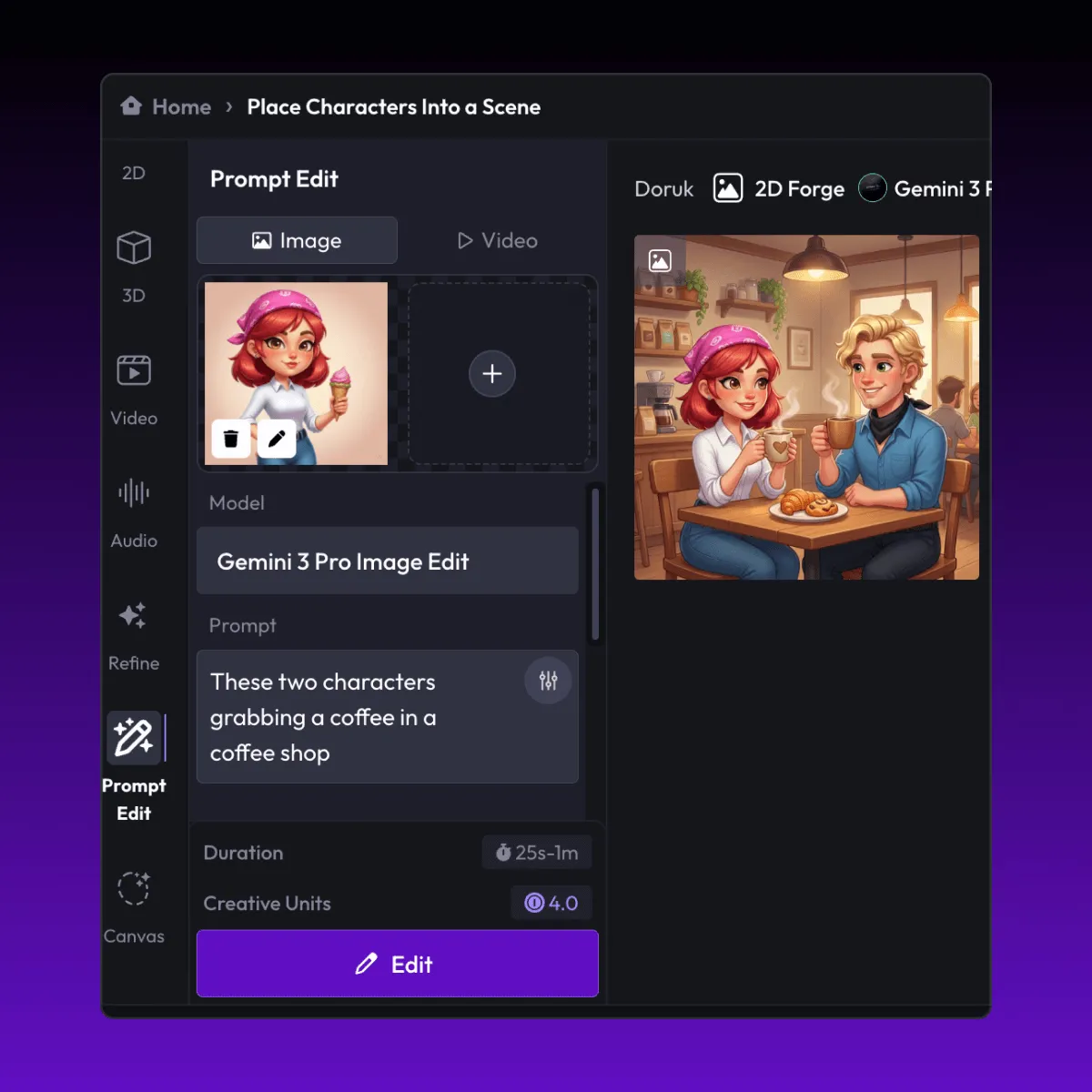
Generate
Hit generate and Layer produces your results. Refine, iterate, or batch-produce at scale.
Scene Art Style Transfer for Game Environments
Apply a reference art style to an entire scene, transforming its visual identity while preserving layout and composition. This lets studios rapidly explore new visual directions for environments without rebuilding assets from scratch.
Visual Identity Application Across Scenes
Enforce a consistent visual identity across multiple scenes by applying the same reference style to each one. Maintain brand cohesion and art direction standards across your game world, even when scenes were originally created by different artists.
Concept Art Style Matching for Production
Bridge the gap between concept art and production assets by transferring the look and feel of approved concept art onto in-progress scenes. This accelerates the art pipeline by giving teams a clear visual target that goes beyond static mood boards.
Cross-Game Style Exploration
Test how your existing scenes would look in entirely different art styles, from painterly to cel-shaded to photorealistic. Evaluate new visual directions for sequels, spin-offs, or IP adaptations without committing to a full art overhaul.
FAQ
What does the AI Scene Style Transfer template do?
This template applies the art style from a reference image to an entire scene. Upload a reference for the target visual style and a scene to transform — Layer reskins the scene's surfaces, lighting, and color treatment while preserving its spatial layout.
When should I use this template?
Use this template when you need to:
Explore new art directions for existing environments
Match production scenes to approved concept art
Enforce consistent style across scenes from different artists
Create themed scene variants for events or seasons
Does it preserve scene layout and composition?
Yes. The style transfer changes visual treatment — colors, materials, lighting mood, and rendering style — while keeping the scene's spatial layout, object placement, and composition intact.
What types of reference images work best?
Concept art, finished environment art, or illustrations that clearly represent the target style. The template extracts characteristics like brushwork, color palette, lighting treatment, and material rendering from the reference.
Can I apply the same style to multiple scenes?
Yes. Use the same reference image across multiple scenes to achieve a unified visual identity throughout your game world, ensuring consistency even across environments built by different teams.
Is this useful for LiveOps and seasonal content?
Absolutely. LiveOps teams use scene style transfer to rapidly produce themed environment variants for seasonal events, holiday updates, and limited-time game modes without rebuilding scene geometry.
More questions? Check out our Help Center .